
Stream a response
Make a rule answer with a simulated streamed response, word by word like an AI chat API, in plain chunks, Server-Sent Events, OpenAI or Anthropic format, with the pacing you choose.
A normal Modify Response rule hands your app its replacement body all at once. A Stream body does it the way an AI chat API does: it cuts your text into small pieces and sends them one at a time with a pause between each, so the answer appears gradually. Your app receives it exactly like a real stream.
That makes it a good tool for building and testing anything that reads a stream:
- A chat screen with a typing effect, before the real model is connected, or without paying for real model calls while you work on the layout.
- The loading, partial and finished states of a screen, at a pace you control.
- What happens when the stream is slow to start, bursty, or cut off halfway, because you can make it any of those.
- Your own parsing code: does it cope with a chunk that ends mid-word, a final
[DONE]marker, or no marker at all?
If you only need a fixed answer, use a regular body. To watch a real stream rather than fake one, see Monitoring streaming responses.
NOTE
This page is a worked example, so it uses a small demo chat page that calls http://localtest.me:4010/chat. That address doesn't exist on the server: the rule invents the answer. Any URL your own app calls works the same way.
Build the rule#
A stream is one kind of Body inside a Modify Response rule. If you haven't built a rule before, the step-by-step walkthrough covers the basics, and this page picks up at the part that's new.
- Open Rules, click Create Rule, and choose the Source: the app that makes the call.
- Give it a Label such as
Fake LLM answer. - Under When…, add a URL condition that matches the call, for example URL
containslocaltest.me:4010/chat. - Under Then…, choose Modify Response.
- Click Add and choose Status Code, then enter
200. The real server doesn't know this address, so it answers404, and your app would treat the stream as an error. The status step makes the answer a success. - Click Add again and choose Body. This step has three modes. Select Stream.
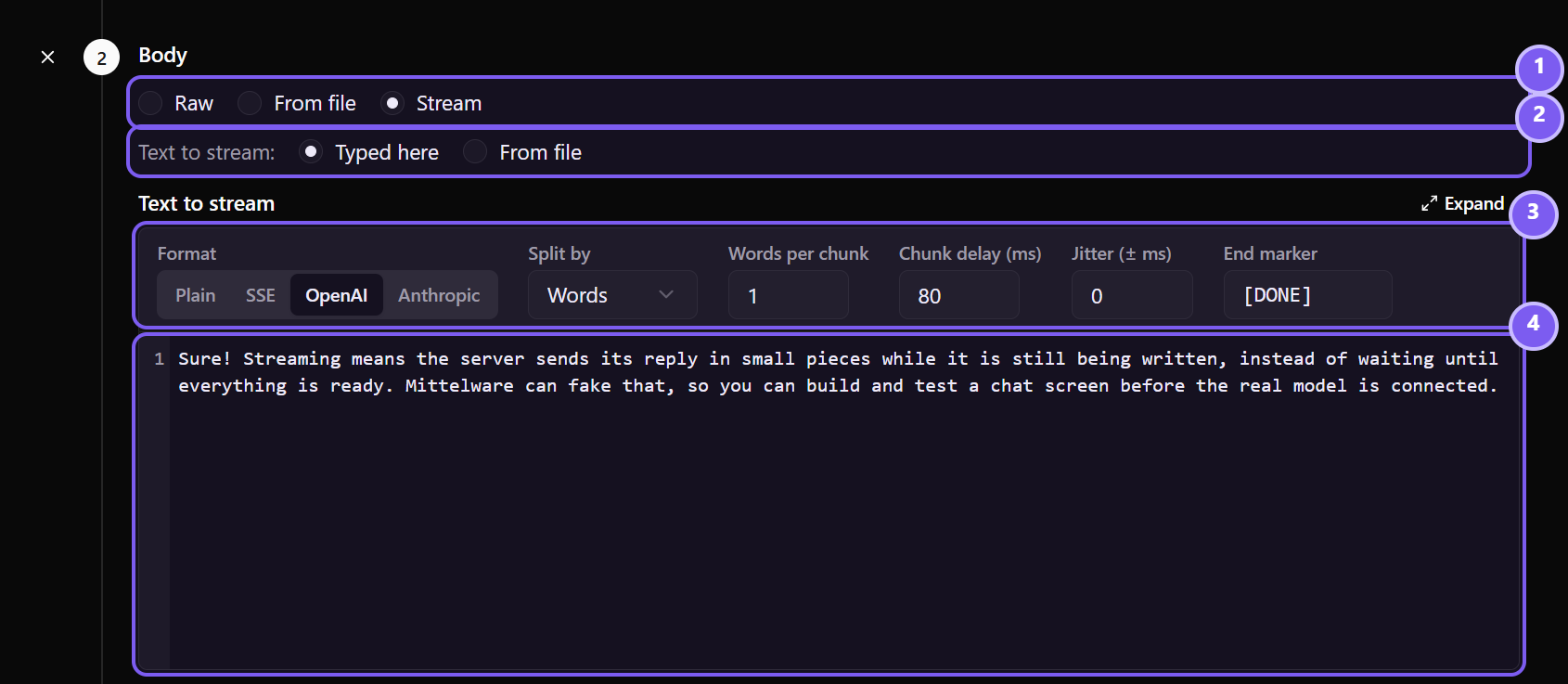
- Raw, From file and Stream choose how the body is supplied. Raw and From file send it all at once; Stream sends it in pieces.
- Text to stream says where the text comes from: Typed here, or From file, which reads a text file from your disk each time the rule runs.
- The stream settings: one row of controls joined to the top of the editor. They decide how the text is sent, and the sections below go through them one by one.
- The text itself, when it's typed here. This is the whole answer. Mittelware cuts it up for you, so write it as normal text, not as chunks. The Expand button above the editor makes it fill the whole content area, which helps with a long answer: see Expand the editor.
The text can use template variables, like {{request.path}}, to reuse parts of the request in the answer.
Choose the format#
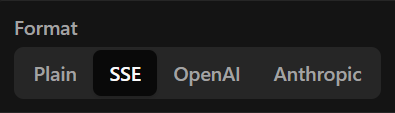
The Format decides how each chunk is wrapped on the wire. It's the first control in the settings row: four buttons, one of which is always selected. Pick the one your app expects. Hover a button to see its full name; a line under the editor describes what the selected format does.
Plain chunks#
The text is sent as it is, in chunked pieces, with nothing added around it. The response's Content-Type is left alone, so set one yourself if your app needs a particular type. Use it for formats that Mittelware doesn't know about, or when you want full control of the bytes.
If you type an End marker, that text is added at the very end, exactly as typed. With the box empty, nothing is added.
Server-Sent Events#
Each chunk becomes one event, and the response is labelled text/event-stream. For the text Hi there, split by words, your app receives:
data: Hi

data:  there

data: [DONE]
A chunk with a line break in it becomes several data: lines in one event, which a client joins back together with a line break. The final data: [DONE] is the end marker. You can change what it says, or empty the End marker box to leave it out.
OpenAI chat completions#
The same event-stream framing, with each chunk wrapped as a chat.completion.chunk the way OpenAI's chat API streams its answer. A stream starts with a frame that names the role, then one frame per chunk of text, then a frame with finish_reason set to stop, then data: [DONE]:
data: {"choices":[{"delta":{"content":"","role":"assistant"},"finish_reason":null,"index":0}],"created":1791308046,"id":"chatcmpl-8b239384b58e25dd","model":"mittelware-simulated","object":"chat.completion.chunk"}

data: {"choices":[{"delta":{"content":"Hi"},"finish_reason":null,"index":0}],"created":1791308046,"id":"chatcmpl-8b239384b58e25dd","model":"mittelware-simulated","object":"chat.completion.chunk"}

data: {"choices":[{"delta":{"content":" there"},"finish_reason":null,"index":0}],"created":1791308046,"id":"chatcmpl-8b239384b58e25dd","model":"mittelware-simulated","object":"chat.completion.chunk"}

data: {"choices":[{"delta":{},"finish_reason":"stop","index":0}],"created":1791308046,"id":"chatcmpl-8b239384b58e25dd","model":"mittelware-simulated","object":"chat.completion.chunk"}

data: [DONE]
The id and created fields are filled in for you. The model is always mittelware-simulated, so a simulated answer can't be mistaken for a real one. The sample above is the real output for the text Hi there. Empty the End marker box to leave out the final data: [DONE].
Anthropic messages#
The event-stream framing of Anthropic's Messages API, with a named event for each step:
event: message_start
data: {"message":{"content":[],"id":"msg_0123456789abcdef","model":"mittelware-simulated","role":"assistant","stop_reason":null,"stop_sequence":null,"type":"message","usage":{"input_tokens":0,"output_tokens":0}},"type":"message_start"}

event: content_block_start
data: {"content_block":{"text":"","type":"text"},"index":0,"type":"content_block_start"}

event: content_block_delta
data: {"delta":{"text":"Hi","type":"text_delta"},"index":0,"type":"content_block_delta"}

event: content_block_delta
data: {"delta":{"text":" there","type":"text_delta"},"index":0,"type":"content_block_delta"}

event: content_block_stop
data: {"index":0,"type":"content_block_stop"}

event: message_delta
data: {"delta":{"stop_reason":"end_turn","stop_sequence":null},"type":"message_delta","usage":{"output_tokens":2}}

event: message_stop
data: {"type":"message_stop"}
For this format the End marker shows message_stop instead of a box. The end of an Anthropic stream is always that event and it has no text to change, so it is always sent.
TIP
Switching format also swaps in that format's usual end marker ([DONE] for Server-Sent Events and OpenAI, none for plain chunks). If you've already changed it, including emptying the box, Mittelware keeps your choice.
Set the pace#
Next to the format, the same row holds the settings that decide how the text is cut up and how fast it's sent. Under the editor, a short summary says what you've chosen.
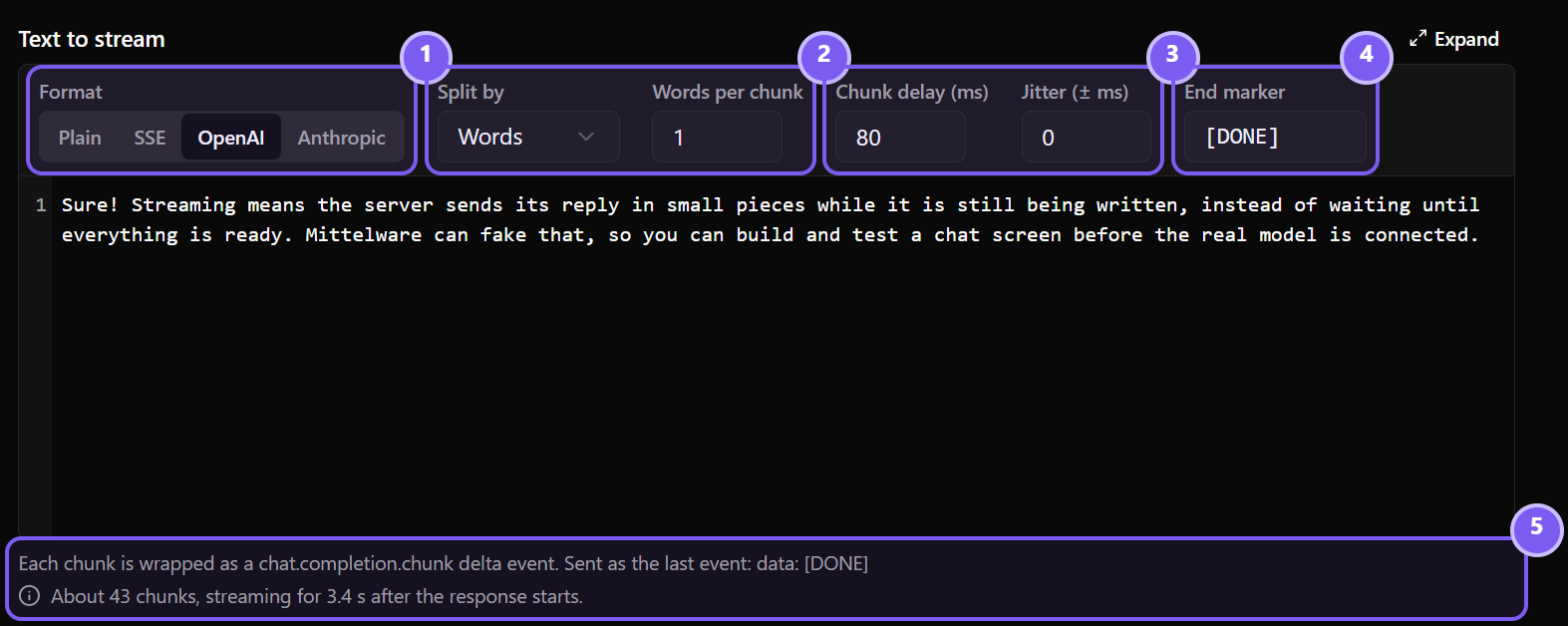
- Format, covered above.
- Split by chooses the unit: Words, Lines or Characters. The field next to it, Words per chunk (or Lines, or Characters), says how many units go into one chunk. With words and
1, every word is its own chunk. Larger numbers make fewer, chunkier pieces. - Chunk delay (ms) is the pause before each chunk after the first. Jitter (± ms) varies that pause by up to that much either way, so the stream arrives unevenly, as real ones do. A delay of
80with a jitter of30waits between 50 and 110 ms each time. - End marker is the closing marker described above. Type what it should say, or leave the box empty for none. For Anthropic it shows the fixed
message_stopevent instead. - The summary under the editor describes the selected format and its end marker, and its grey line is an estimate: roughly how many chunks the text makes and how long the pauses add up to. Here it says about 43 chunks and 3.4 seconds. It appears for text typed into the rule, and it's approximate when the text contains template variables.
| Setting | What it accepts |
|---|---|
| Chunk size | A whole number, from 1 up to 1,000,000 |
| Chunk delay | 0 to 60,000 ms (one minute) |
| Jitter | 0 up to the delay. It can't be larger than the delay |
Expand the editor#
For a long answer, click Expand at the top right of the editor. It grows to fill the whole content area. The settings row stays above the text and the summary stays below it, so you can still change the format or the pacing, and watch the estimate follow as you write. Click Collapse, or press Esc, to go back.
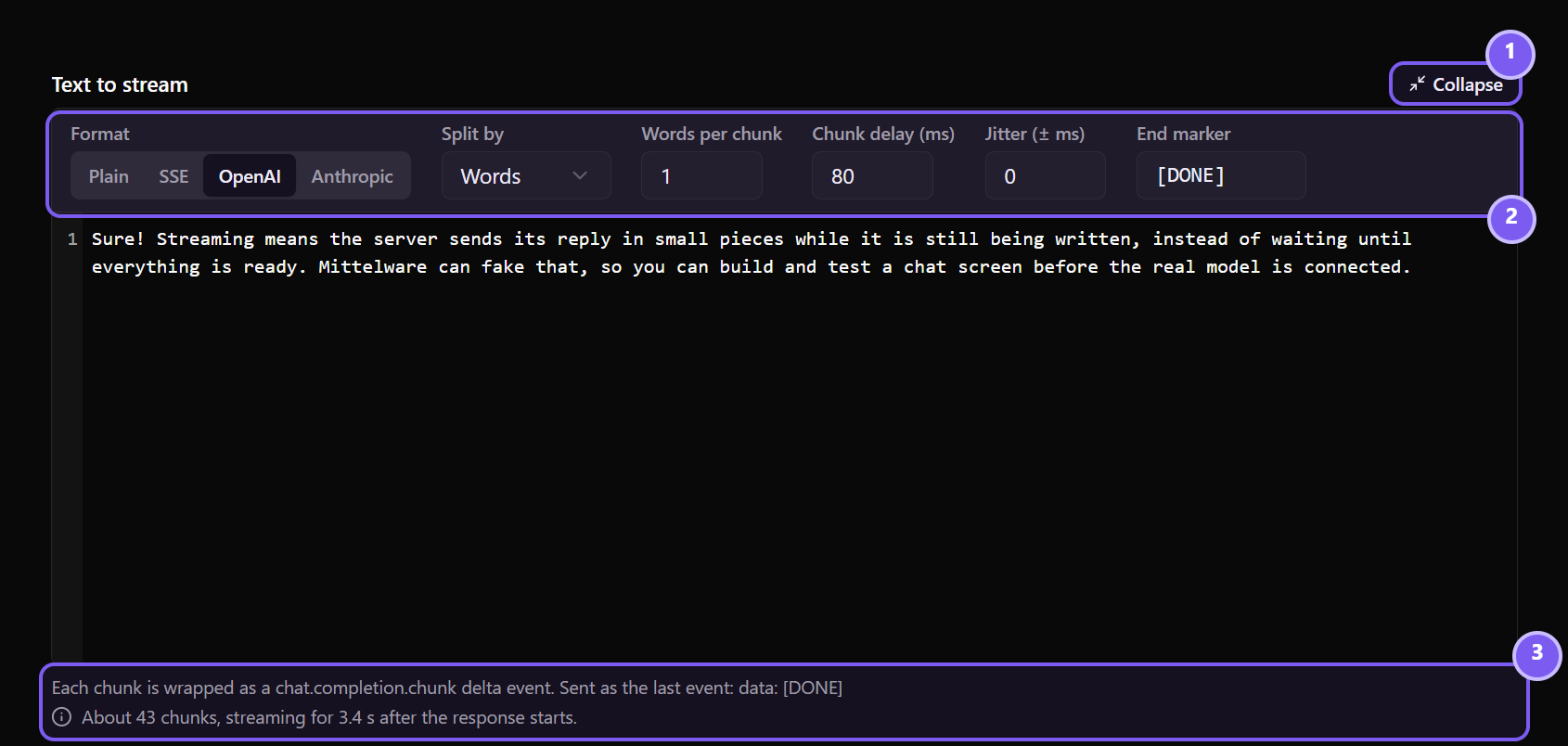
- Collapse returns the editor to its normal size.
- The settings row, exactly as before.
- The summary and chunk estimate, which update as you type.
How the text is cut#
Cutting never changes the text: joining the chunks always gives back exactly what you typed, spaces and line breaks included.
- Words keep the space before them, the way an AI model's pieces look:
Hello,brave,new,world. - Lines keep their line break: the chunk for the first line of
a⏎b⏎cisa⏎. - Characters work on whole characters, so the bytes of an accented letter or a symbol are never split. (An emoji built from several characters, such as a family, can still be cut between its parts.)
What's paced and what isn't#
Only the chunks that carry your text are paced. The framing around them, such as OpenAI's opening role frame, the closing finish_reason frame, Anthropic's start and stop events and the end marker, follow their neighbour at once. The first chunk of text goes out immediately, because the rule's own Delay (ms) field, further down the form, already covers the wait before the response starts.
That gives you two separate dials. Use the rule's Delay for "the model takes three seconds to start answering", and the stream's Chunk delay for "then it types at this speed".
Content-Type#
Every format except plain chunks labels the response text/event-stream. If you add a Headers step to the rule that sets Content-Type, your value wins. The Content-Length header is dropped, since the size isn't known up front, and a Content-Encoding header is dropped too, because the text is sent uncompressed.
Save it and try it#
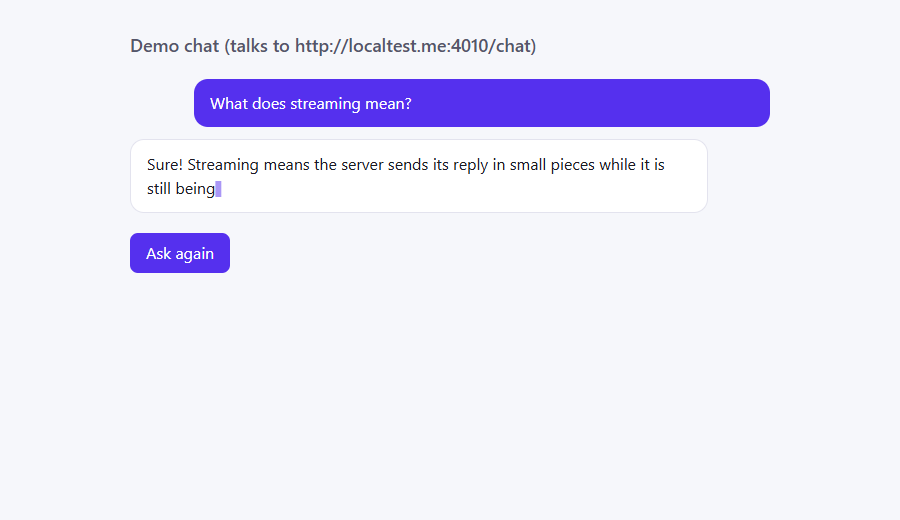
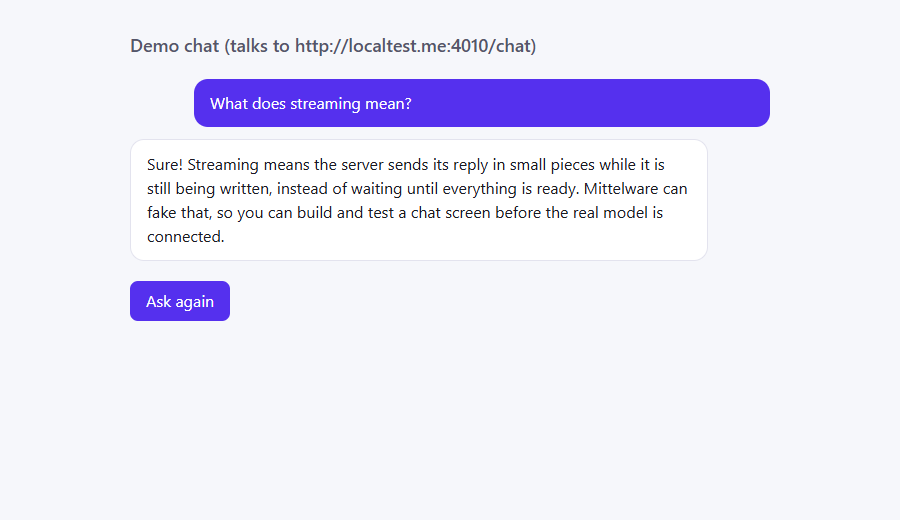
Click Create to save, then use your app. In the demo page, the answer fills in word by word with a cursor, as it would from a real model.
A few seconds later, the answer is complete:
In Flows#
The request is tagged like any other request that a rule acted on, and you can open its Stream view to see exactly what your app was sent.
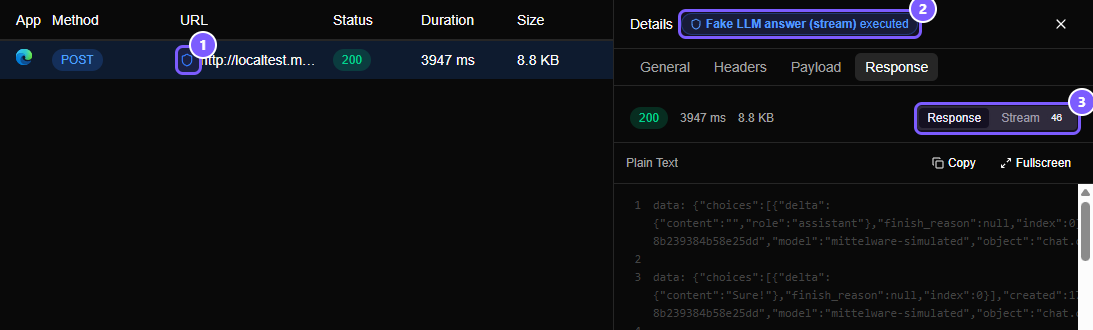
- The shield in front of the URL means a rule matched this request.
- The badge names the rule, Fake LLM answer (stream) executed.
- The Response / Stream switch, with the number of chunks: 46 here.
The Stream view shows the beginning of the stream:
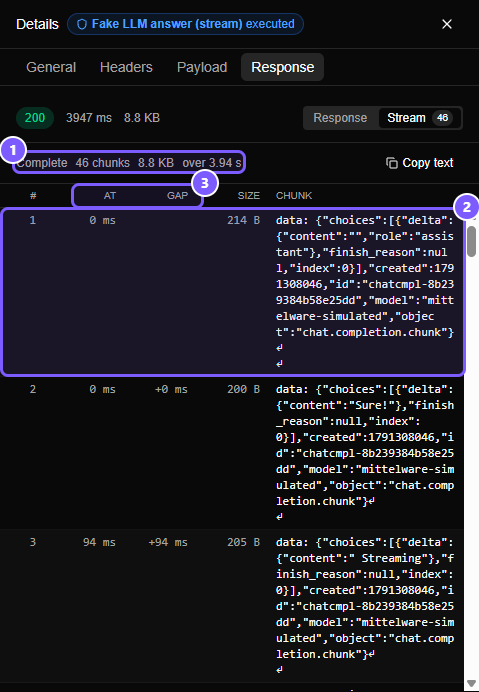
- The status line: Complete, 46 chunks, the total size and the total time. 43 of the 46 chunks carry text (one word each); the other three are the framing.
- Chunk 1 is the OpenAI opening frame, which names the role. It carries no text and is sent immediately.
- The At and Gap columns show the pacing. Chunk 2, the first word, arrives at
0 ms; chunk 3 follows about 80 ms later, the delay we set, plus a little for the network.
And the end:
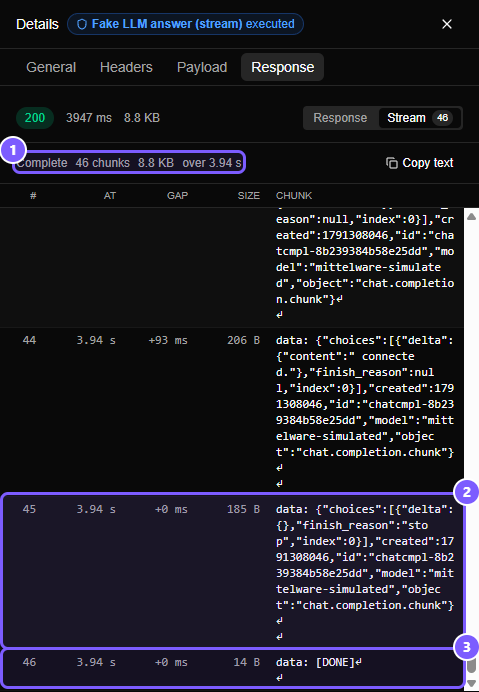
- The same status line.
- Chunk 45 is the closing
finish_reason: "stop"frame, with a gap of+0 ms: framing isn't paced. - Chunk 46 is the end marker,
data: [DONE], also with+0 ms.
Ideas for testing#
| To test… | Set up… |
|---|---|
| A typing effect | Words, 1 per chunk, delay 40–80 |
| Uneven delivery | The same, with jitter at half the delay |
| A slow first answer | The rule's own Delay (ms) set to 3000, plus a normal chunk delay |
| A very fast model | Delay 0: all chunks arrive back to back |
| Stop and cancel | A long text and a delay of 200. Press your app's Stop button and check the flow: it should say the client closed the connection |
A parser that expects [DONE] |
Empty the End marker box and see what your app does when the stream just ends |
| Whole lines | Split by Lines, which suits formats that send one JSON object per line |
| Multi-byte text | Characters, 1 per chunk, with emoji or accents in the text, to check your decoder |
Good to know#
- The stream is built when the rule runs, so editing the rule affects the next request, not one already in progress.
- A HEAD request has no body, so it's never streamed.
- The real request still goes to the real server, and the server's own response is thrown away and replaced by your stream. If the request has side effects, such as placing an order, remember that they still happen. Block Request stops a request before it leaves, but it can only answer with an error status, not a stream.
- The pause only happens while your app is reading. A slow reader never has chunks queued up ahead of it, and an app that disconnects simply stops the stream.