
Monitoring streaming responses
Watch server-sent events, JSON lines and other streamed responses piece by piece as they arrive, see how each stream ended, and learn what Mittelware follows and where its limits are.
Some responses don't arrive in one go. The server sends the answer in pieces, a little at a time, and keeps the connection open while it works. Chat APIs from AI providers answer this way (you see the reply appear word by word), and so do live logs, progress bars, notifications and "typing…" indicators.
Mittelware follows these responses as they happen. The request shows up in Flows right away, and every piece is recorded with the moment it arrived, so you can see not just what the server sent but when.
What counts as a stream#
A response is followed as a stream in three situations.
| Situation | Examples |
|---|---|
| Labelled as an event stream | Content-Type: text/event-stream (Server-Sent Events). Always followed |
Labelled as a line-by-line format, with no Content-Length |
application/x-ndjson, application/ndjson, application/jsonl, application/jsonlines, application/x-jsonlines, application/stream+json, multipart/x-mixed-replace |
| Not labelled, but it turns out to be one | A text, JSON or XML response of unknown length that is still going after half a second |
The second row has a condition: if the server states the size up front with a Content-Length header, the body was produced in full before it was sent, so there's nothing live to follow. Mittelware captures it whole, as it does any normal response.
Unlabelled streams#
Plenty of servers stream without saying so, for example a JSON endpoint that writes one line at a time with Content-Type: application/json. For a text-like response with no declared length, Mittelware reads for up to 500 milliseconds:
- If the body ends within that time, it's captured exactly as before. Most responses finish well inside the window, so you won't notice anything.
- If the body is still going, Mittelware treats it as a stream from then on. The pieces it already read are passed on to your app straight away and recorded with their real arrival times, so nothing is held back or reordered.
Images, binary files and anything with a declared length are never probed.
NOTE
Mittelware doesn't probe a request that one of your rules might act on through its response, such as a rule with a Status Code or Response Body condition. That rule needs the whole body before your app gets any of it, so an unlabelled response is captured in full first. A slow unlabelled stream then only reaches your app once it has finished. A server that labels its stream (text/event-stream, application/x-ndjson) is always followed.
Compressed streams#
A stream compressed with gzip or another encoding is decoded on the side, so its pieces are readable in the Stream view. Your app still receives the original, compressed bytes untouched.
Watching a stream live#
While a stream is running, its row in the list doesn't show a duration, because the exchange isn't over. It shows a green pulsing streaming label instead.
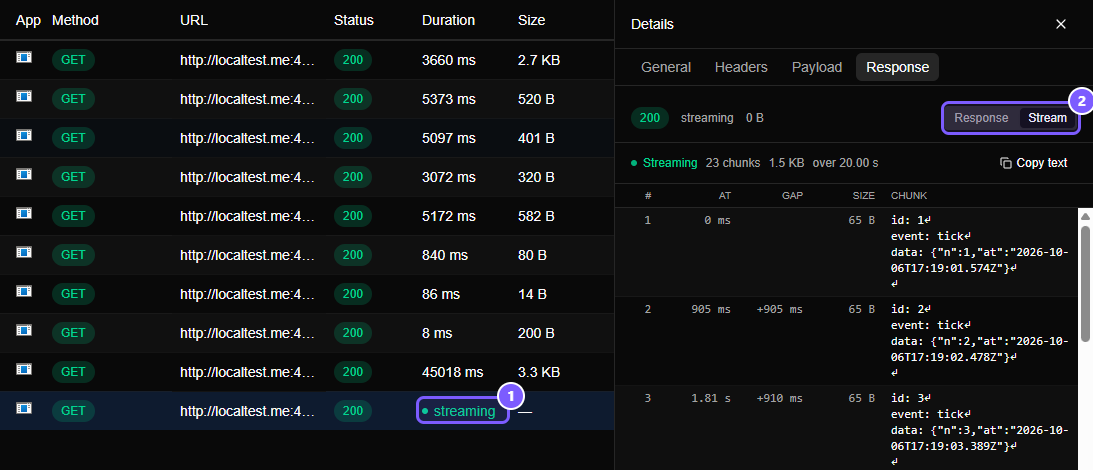
- The green streaming label takes the place of the duration. Once the stream ends, the row shows its total time and size like any other.
- In the details panel, the Response tab gets a Response / Stream switch whenever the response is a stream. Stream is the view you want here.
Select the row, open the Response tab and click Stream:
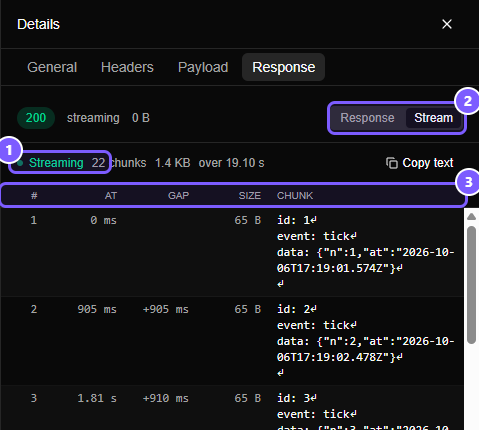
- The status line says Streaming, with a pulsing dot, and keeps count: how many chunks have arrived, how many bytes, and how long the stream has been running.
- The Response / Stream switch. Response shows the finished body as plain text. A real stream's body only exists once the stream has ended, so while it runs that view says No response body.
- The column headings, explained next.
The columns#
| Column | What it shows |
|---|---|
| # | The chunk's position in the stream, starting at 1 |
| At | How long after the first chunk this one arrived. The first chunk is always 0 ms |
| Gap | How long after the previous chunk it arrived |
| Size | The chunk's size in bytes |
| Chunk | The chunk's text. A ↵ marks a line break, so a chunk that is only a blank line doesn't look empty |
A chunk is one piece of the body as it came off the network. Servers usually send one event or one line per chunk, but that isn't guaranteed: the network can join small pieces or split big ones, so don't expect chunk boundaries to line up exactly with events.
The list follows the stream: it scrolls to each new chunk as it arrives. Scroll up to read earlier chunks and it stops following, so it won't jump away from what you're reading. Scroll back to the bottom and it picks up the stream again.
What the timing tells you#
At and Gap are the point of this view. They answer questions that the finished body can't:
- Is the first chunk slow? A long wait before chunk 1 means the server took a long time to start, which a chat user feels as "it's thinking".
- Is the pace steady? Gaps that are all about the same mean a smooth stream. A few huge gaps mean stalls.
- Is anything buffered along the way? If many chunks show a gap of
+0 msand then one long pause, something between the server and your app is collecting pieces and releasing them in batches.
Reading a finished stream#
When a stream ends, its row shows the total time and size, and the Stream view settles into a record of the whole exchange.
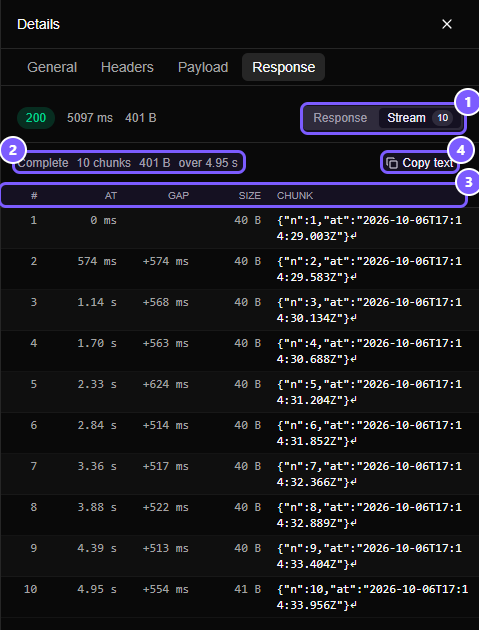
- The Response / Stream switch, with the number of chunks shown next to Stream.
- The status line now reads Complete, followed by the chunk count, the total size and the total time.
- The column headings: here you can read the pace down the Gap column.
- Copy text copies the whole stream, every chunk joined together in order, to your clipboard.
On a finished stream, the Response view works too: it shows the whole body assembled from the chunks, formatted like any other response.
How a stream ended#
A stream doesn't always end the tidy way. Mittelware records which of three things happened:
| Ending | What it means |
|---|---|
| Complete | The server sent everything and finished the body |
| Ended early: the client closed the connection | Your app stopped listening before the server was done. Pressing a Stop button, closing the page, aborting the request or hitting a timeout all look like this |
| Ended early: upstream error | The connection to the server broke part way through. The error text is shown |
An early ending is marked in two places: an amber ended early badge next to the size in the Response tab, and an amber line in the Stream view that gives the reason.
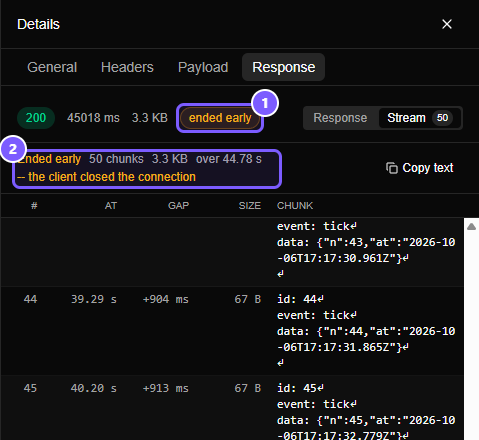
- The ended early badge. Hover over it for the reason.
- The status line spells out why: the client closed the connection.
When the server is the one that fails, the reason says so:
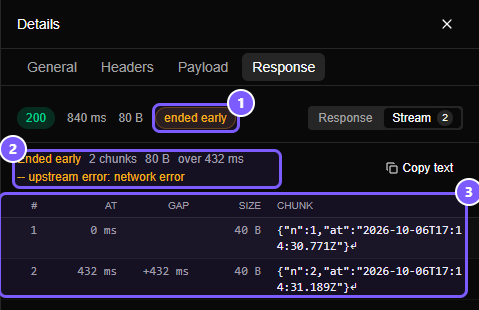
- The ended early badge.
- The status line: upstream error, with the error the connection reported.
- The chunks that did arrive before the failure. They're all kept, so you can see exactly how far the stream got.
Telling these apart saves real debugging time. "Client closed" points at your app (did it abort on purpose? is there a timeout?). "Upstream error" points at the server or the network.
Limits#
Mittelware keeps streams in memory, so it caps what it holds. Your app is never affected: the whole stream always reaches it, and only what's shown is limited.
| Limit | What happens |
|---|---|
| 10,000 chunks or 8 MB of text in one stream | Later chunks still reach your app, but aren't kept. A note at the top of the Stream view says only the first chunks are shown |
| 200 streams | Mittelware remembers the chunks of the 200 most recent streams. An older stream keeps its row in the list, but its recorded chunks are forgotten |
| A single chunk over 2,000 characters | Shown cut short, with a note saying how much is left out. Copy text still copies everything |
| Clear all flows | Also clears every stream's chunks |
| A body over 32 MB that declares its size | Not captured at all. It passes straight through, and isn't treated as a stream |
HTTPS streams work the same way as HTTP ones, once you've trusted the certificate. An app that pins its own certificate still can't be inspected.
Streams and rules#
- Rules that look at the request work as usual, and so do the actions. A Modify Response rule can replace a real stream with an answer of its own, including a simulated stream: see Stream a response.
- Rules that look at the response can match a stream on its Status Code and Response Header, because those arrive before the body. They can't match on Response Body, because a stream's body isn't captured whole. See Conditions.
Try it yourself#
You don't need an AI service to see a stream. This tiny Node.js server sends eight events, 700 ms apart:
// stream.mjs  (run it with: node stream.mjs)
import http from "node:http";

http
  .createServer((req, res) => {
    res.writeHead(200, { "Content-Type": "text/event-stream" });
    let n = 0;
    const timer = setInterval(() => {
      res.write(`data: tick ${++n}\n\n`);
      if (n === 8) {
        clearInterval(timer);
        res.end();
      }
    }, 700);
  })
  .listen(4010);
Switch Mittelware on, then ask for it through the proxy with curl. The -N flag tells curl not to buffer the output:
curl -N -x http://127.0.0.1:8080 http://localtest.me:4010/Use localtest.me here, not localhost: it's a public name that always points back at your own computer, and tools commonly skip the proxy for localhost itself. Open the request in Flows and switch to Stream. To see a stream end early, press Ctrl + C in the terminal halfway through, and the flow will report that the client closed the connection.
Troubleshooting#
- There's no Stream switch. The response was captured as a normal body: it had a
Content-Length, it finished within half a second, or a rule that matches on the response was in play, as described above. - The whole stream appears at once, at the end. Check the content type. An unlabelled stream is only detected when no response rule could apply to it. It can also be the server or a CDN between you and it holding the output back; the Gap column shows whether the pieces really arrived together.
- The chunk text looks garbled. The stream is probably compressed with something Mittelware can't decode, or isn't text. Check the Content-Encoding and Content-Type under the Headers tab.
Related#
- Stream a response: make a rule answer with a simulated stream
- Reading the Flows page
- Conditions