
Rules
Learn to build Mittelware rules step by step with screenshots, then choose the right action - block, modify request, modify response, stream a response, proxy to another endpoint or pause - with a detailed page for each.
A rule is an instruction for Mittelware: when traffic looks like this, then do that. Rules are how you go from watching traffic to changing it, whether that means blocking a request, mocking an API or testing how your app handles a server error.
This page has two halves. First, a step-by-step walkthrough where you build one rule with a screenshot of every field. Then a guide to the actions, with a detailed page for each one: what it does, every setting, and how to try it.
If terms like "request", "status code" or "body" are unfamiliar, read Start here first.
The shape of every rule#
Every rule has the same parts, in the same order on screen:
| Part | What it does |
|---|---|
| Source | Which application's traffic the rule watches. Traffic from other apps is ignored |
| Label | A name you will recognise. It's shown in the Rules list and on matching requests in Flows |
| When… | One or more conditions the traffic must match. If you add several, all of them must match |
| Then… | The action to take |
| Delay (ms) | Optional. Waits this many milliseconds before the action happens. 0 means no wait |
The Rules page#
Open Rules in the sidebar to see your rules.

- Create Rule starts a new rule.
- The switch in the Status column turns a rule on or off. An off rule does nothing but stays saved, which is perfect for rules you only need sometimes.
- The three-dot menu at the end of a row holds more actions for that rule.
Each row shows the rule's name, its action (here Modify Response), the application it watches, and when it was last changed. The application filter and the sort button above the table help when you have many rules.
Build your first rule, step by step#
Goal: whenever Microsoft Edge asks for https://jsonplaceholder.typicode.com/users/1, ignore the server's real answer and return a fake user called Ada Lovelace instead.
This is the same rule as in Getting started. Use any browser you like. Just choose it as the source in step 1.
Before you begin, make sure the browser is opened through Mittelware and monitoring is on.
Step 1: Create the rule and choose the source#
Click Create Rule. An empty form opens. The right-hand panel, About Rules, explains each field as you go.
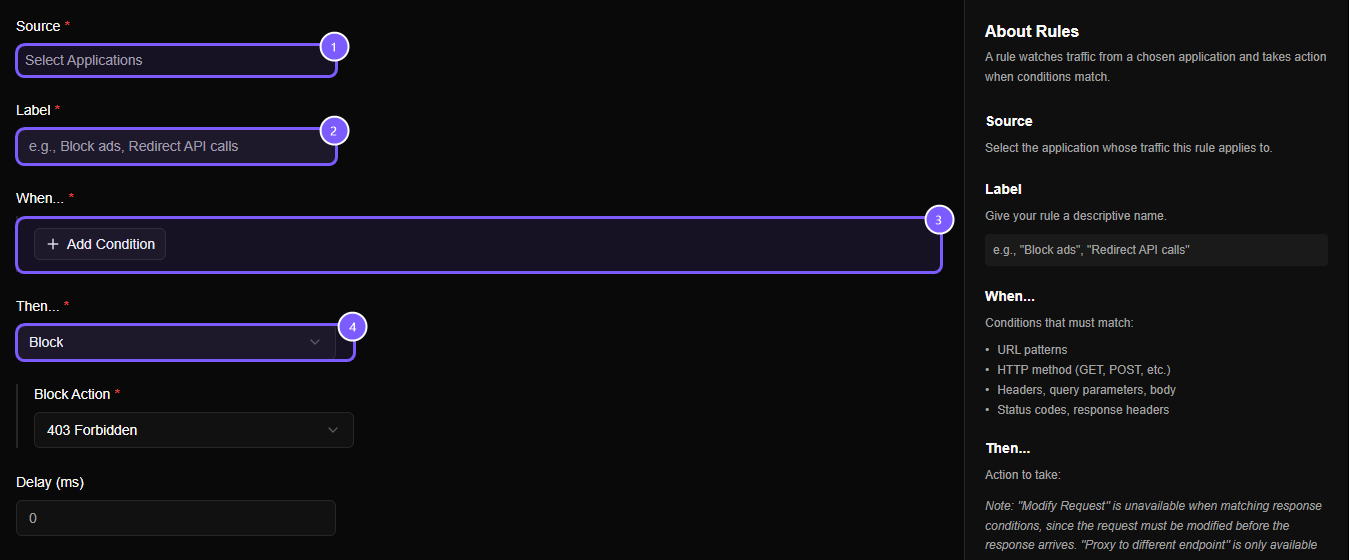
- Source
- Label
- When…
- Then…
Click the Source box and start typing the name of your browser, for example Edge. The list shows every program Mittelware found on your computer, so typing is the fastest way to find yours. Click it to select it.
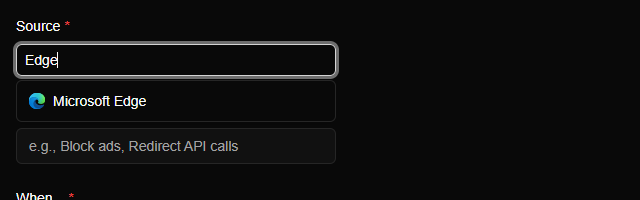
You can pick more than one application. The rule then applies to all of them.
Step 2: Give it a label#
In Label, type a name that tells future-you what the rule does: Docs: fake user. Good labels describe the effect ("Block ads", "Mock users API") rather than the technique.
Step 3: Say when it should run#
Under When… click Add Condition. A menu offers every kind of condition, grouped into three columns:
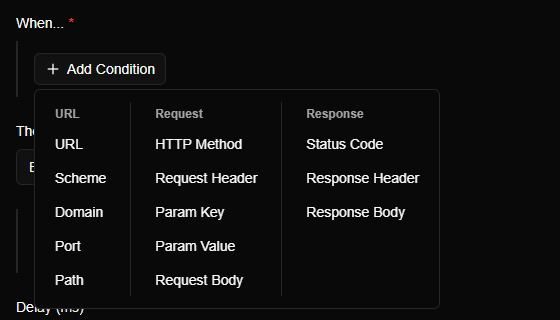
Choose URL. A row appears with three boxes: what to look at, how to compare, and the value. Open the middle box, Operator:
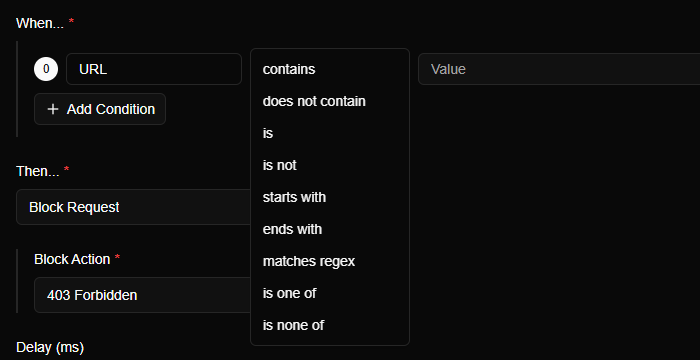
Pick contains, then type jsonplaceholder.typicode.com/users/1 in the value box.

TIP
Prefer contains when you're starting out. It's forgiving: you don't have to type the whole address, and it still matches if the app adds ?page=2 on the end. is wants an exact match of the whole value, so it's easy to miss by a character.
Step 4: Say what should happen#
Open the Then… box. It lists the actions, each with a one-line description:
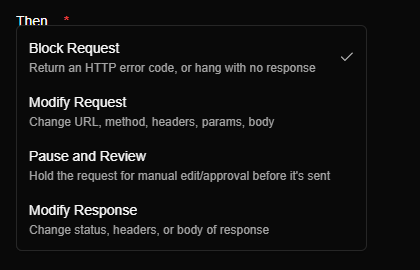
Choose Modify Response. This one lets you change what comes back to the app. It starts empty with an Add button, because every part is optional. Click Add to see what you can change:
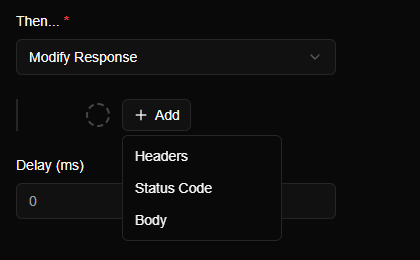
Choose Body. A code editor appears. Leave Raw selected and paste the fake answer:
{"id": 1, "name": "Ada Lovelace", "email": "ada@example.com"}The finished form looks like this:
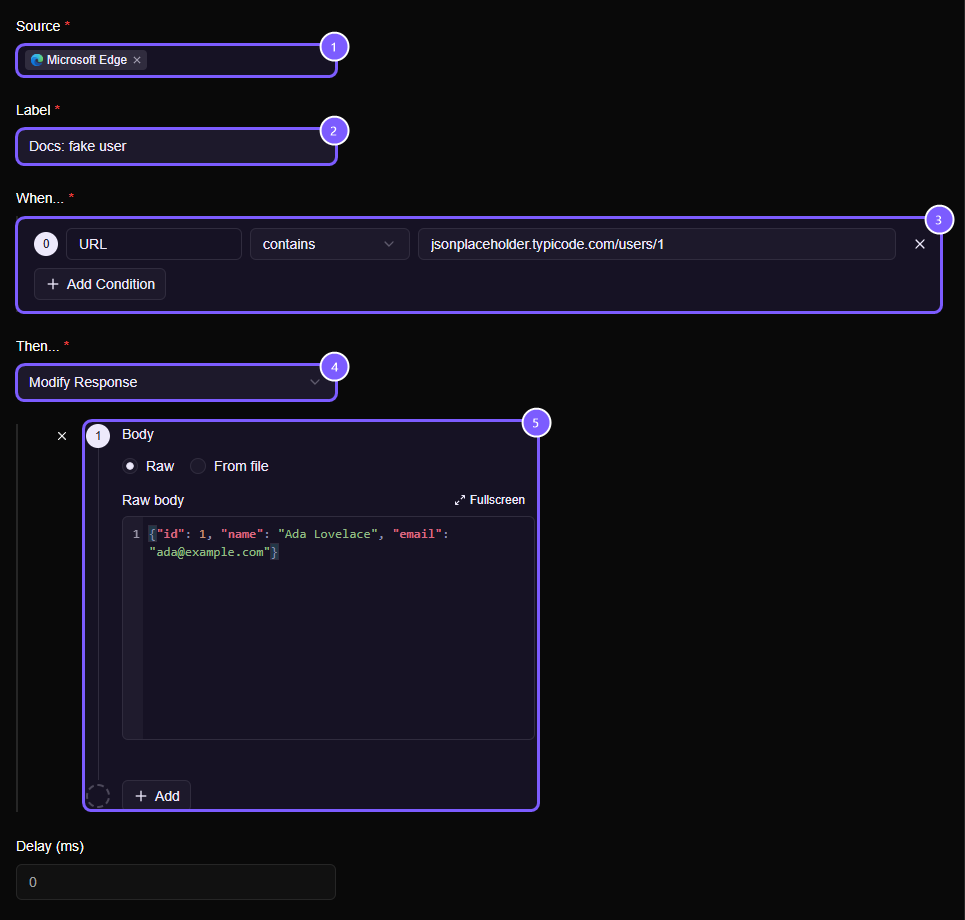
- Source: only Edge's traffic.
- Label: the name shown in the Rules list.
- When: the URL condition.
- Then: Modify Response.
- The new body to return.
Leave Delay at 0.
Step 5: Save it#
Click Create in the top-right corner. The rule is saved and active straight away. There's no restart, and it applies to the very next matching request. You land on the rule's edit view, which has an Enabled switch and a Save button for later changes.
Step 6: Try it#
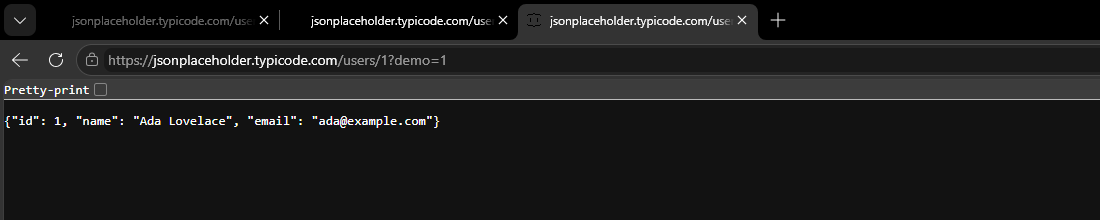
In the browser, open this address (the ?demo=1 matters, see the note below):
https://jsonplaceholder.typicode.com/users/1?demo=1The server really did send back Leanne Graham, but the browser shows your reply:
Now open Flows to see what happened. The row has a shield icon, and its Details panel carries a badge with your rule's name:
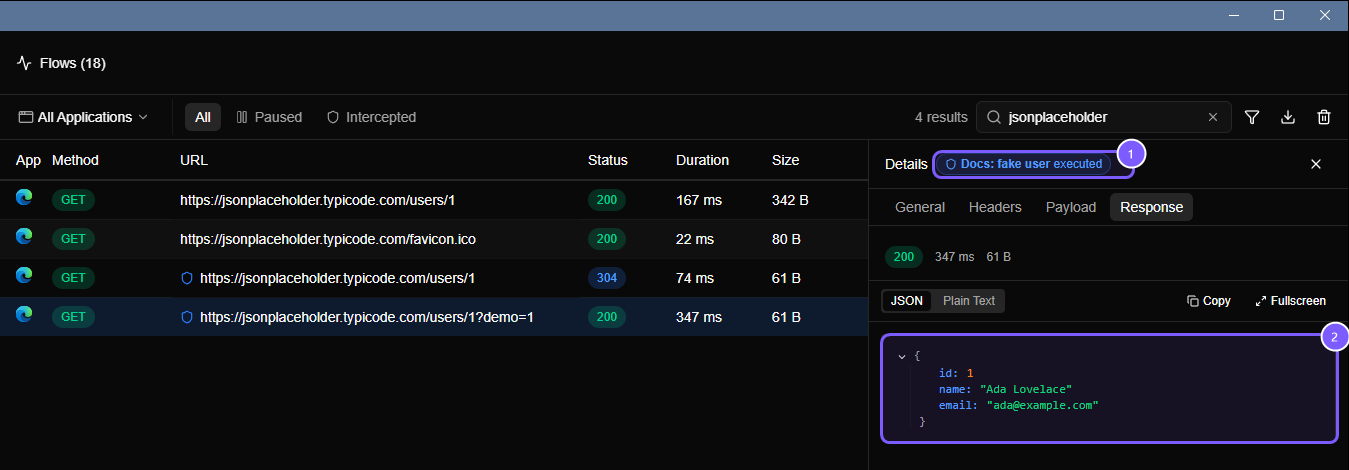
WARNING
If the rule matched but the page looks unchanged, the browser probably used its saved copy. Browsers keep copies of pages and ask the server only "has this changed?". If the server says 304 Not Modified, the browser keeps showing the old copy and ignores any new body. You can see this in the Flows screenshot above: the first request to /users/1 got a 304 with a shield, so the rule matched but the browser used its cache. Fix it by hard-reloading (Ctrl + Shift + R, or Cmd + Shift + R on macOS), by using a private window, or by adding something like ?demo=1 to the address so it counts as a new page.
Congratulations, you've written a working rule. When you're done, turn it off with the switch on the Rules page, or delete it. Otherwise it will keep answering for that URL.
Choosing an action#
You've now built one rule. Everything else is the same form with a different When… and a different Then…. Each condition and each action has its own page with the full detail.
Conditions (When…)#
A rule runs on traffic that matches all of its conditions. They can look at the URL, the request (method, headers, query parameters, body) or the response (status code, headers, body), using comparisons such as contains, is, starts with, matches regex and is one of. Conditions lists every category and operator, and explains how request and response conditions change which actions you can pick.
Actions (Then…)#
| Action | What it does | Typical use | Details |
|---|---|---|---|
| Block Request / Block Response | Stops the request, or the response, and answers with an error you choose, or with silence | Check your app's error handling and timeouts | Block |
| Modify Request | Changes the request before it is sent: URL, method, headers, query parameters, body | Redirect to your laptop, add a header, send odd input | Modify Request |
| Modify Response | Changes the status, headers or body of the response before your app receives it | Mock an API, fake an error, test a fix | Modify Response |
| Modify Response with a Stream body | Answers with text sent in pieces, like an AI chat API | Build and test a chat screen without a real model | Stream a response |
| Proxy to different endpoint | Replaces the response with one fetched from another URL | Fall back to a test server when the real one answers 404 |
Proxy to endpoint |
| Pause and Review | Holds the request so you can edit it by hand | Debug exactly what is sent, one request at a time | Pause and Review |
Not sure which to use? Ask what you want to happen:
- "Make it fail." → Block. A status code, or a timeout.
- "Make it succeed with different data." → Modify Response, or Stream a response if the data should arrive piece by piece.
- "Send it somewhere else." → Modify Request for every call, or Proxy to endpoint only when the real answer is, say, a
404. - "Let me look at it and decide." → Pause and Review.
The Delay field#
Every rule has an optional Delay (ms). It waits that many milliseconds before the action happens, whatever the action. It's how you make a response slow: see Test timeouts and slow responses.
Row menu: make a copy, delete#
At the right end of each row in the Rules list, the three-dot menu has two actions.
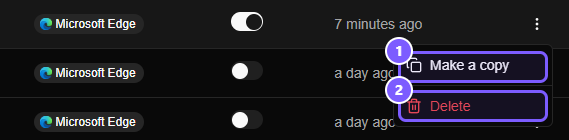
- Make a copy opens a dialog with the name
Copy of …ready to confirm. The copy is created switched off and opened for editing, so a copy of a live rule can never act on traffic before you've changed it. Use it to build a variant, such as the same rule with a different status code. - Delete removes the rule for good, after asking you to confirm. To keep it but stop it running, use the switch in the Status column instead.
Order and switching rules off#
Rules are evaluated in the order shown on the Rules page, from the top, so the top row is the one that wins a match first. Use the switch on any rule to disable it without deleting it.
Limits#
- Streaming responses (
text/event-streamand similar) are followed live, and you can see them chunk by chunk in the Flows Stream view. Because their body isn't captured whole, a Response Body condition can't match them. Status Code and Response Header conditions still can. - Bodies over 32 MB aren't captured, so a Response Body condition can't match them either.
- HTTPS rules only work once you've trusted the certificate. See HTTPS & certificates.
Ready-made ideas#
The blog has complete, worked examples:
In this section
- ConditionsEvery condition and operator a rule can use to decide which traffic it acts on, how several conditions combine, and why request and response conditions change the actions you can choose.
- BlockMake a request or response fail on purpose with a status code of your choice, or hang with no answer at all, to test how your app handles errors and timeouts.
- Modify RequestChange a request before it is sent, including its URL, method, headers, query parameters and body, to redirect it to your laptop, add a token or test what a server does with unusual input.
- Modify ResponseChange the status code, headers or body of a response before your app receives it, to mock an API, fake an error, return unusual data or test a fix without touching the server.
- Stream a responseMake a rule answer with a simulated streamed response, word by word like an AI chat API, in plain chunks, Server-Sent Events, OpenAI or Anthropic format, with the pacing you choose.
- Proxy to endpointWhen a real response matches your conditions, fetch the answer from a different URL instead and return that, for example to fall back to a test server when the real endpoint returns a 404.
- Pause and ReviewHold a matching request before it leaves your computer, read it, edit its method, URL, headers or body by hand, then resume it or drop it. A breakpoint for HTTP.