
Modify Request
Change a request before it is sent, including its URL, method, headers, query parameters and body, to redirect it to your laptop, add a token or test what a server does with unusual input.
Modify Request changes a request on its way out. Your app builds the request one way, and the server receives it the way your rule says. The app never knows.
Typical uses:
- Redirect a call from a deployed API to the one running on your laptop.
- Add or remove a header, such as an
Authorizationtoken or a feature flag. - Change the method, for example a
POSTinto aPUT. - Add or replace query parameters, such as
?debug=1. - Replace the body with something the app would never send, to see how the server validates it.
NOTE
Modify Request is only available when all of a rule's conditions look at the request. It runs before the request is sent, so it can't wait for a response condition. If you need the other side of the exchange, see Modify Response and Conditions.
Choose what to change#
Choose Modify Request under Then…, then click Add to pick the parts you want to change. You can use any of them, in any combination, and each can be added once.
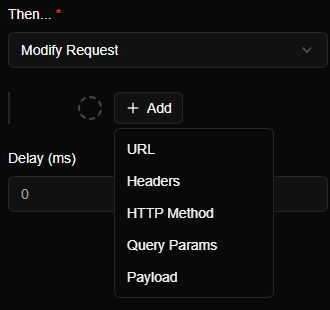
Anything you don't add passes through untouched. A rule that only adds a header leaves the URL, the method and the body exactly as they were. The steps run from top to bottom, in the order shown on the form.
| Part | What you can do |
|---|---|
| URL | Send the request somewhere else: a different host, port, scheme or path. If the request carries a Host header, it's updated to match the new address |
| Headers | Set a header (adding it, or replacing the existing value) or Remove it. You can add several rows |
| HTTP Method | Change GET, POST, PUT, PATCH, DELETE and so on |
| Query Params | Set ?name=value parameters. A parameter that's already in the URL gets the new value, a new one is added, and parameters you don't mention are kept. You can add several rows |
| Payload | Replace the request body. See below |
Payload types#
A payload replaces the body of the request. Choose the type that matches what the server expects:
| Type | Use it for | Content-Type |
|---|---|---|
| form-data | A multipart form. Each row has a key and a value that is Text or a File from your disk | Set to multipart/form-data with a fresh boundary |
| x-www-form-urlencoded | An ordinary HTML form: rows of keys and values | Set to application/x-www-form-urlencoded |
| raw | Any text you type, such as JSON, XML or plain text | Left as the app sent it. Add a Headers step to set Content-Type yourself |
| binary | A single file from your disk, sent as the whole body | application/octet-stream, only if the request had no type |
The Content-Length is corrected for you whenever a payload replaces the body.
Example: send an API call to your laptop#
This rule redirects every call to api.example.com to a server on localhost:3000, keeping the path, and tells that server which host the call was meant for.
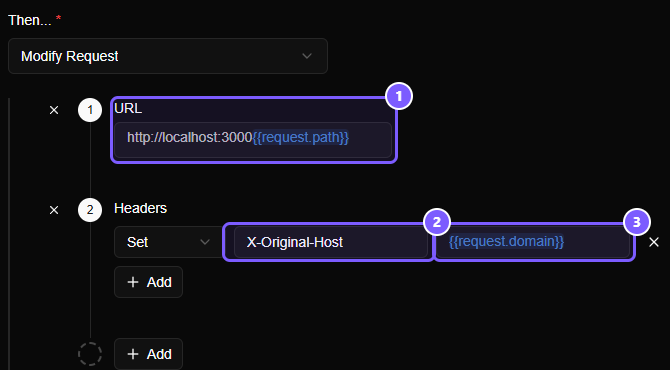
- The URL step.
http://localhost:3000{{request.path}}sends the request to your laptop, and{{request.path}}is replaced with the path of the original request. - The header's name,
X-Original-Host. The drop-down to its left chooses between Set and Remove. - The header's value,
{{request.domain}}, which is filled in with the host the app originally called.
Both values use template variables: {{request.path}} and {{request.domain}} are filled in again for every request. Type {{ in any field for a list of the ones you can use. Anything you can write in a URL, a header value, a query value or a payload can use them.
TIP
{{request.path}} doesn't include the query string. If the endpoint needs parameters, add them back with {{request.params.name}}, or leave the URL step off and use a Query Params step instead.
The full walkthrough, including a safe way to try it with screenshots, is in Point a production app at your local server.
What you see in Flows#
Flows shows the request as it was sent, which is the rewritten one. If a rule changed the URL, the URL column shows the new address, with a shield in front of it and the rule's name in the details panel. To find the request later, search for the new address rather than the original one.
More ideas#
| To test… | Rule |
|---|---|
| That the API rejects a missing token | Headers → Remove Authorization |
| A feature flag | Headers → Set X-Feature-New-Checkout to true |
| How the server validates input | Payload → raw with { "quantity": -5 } |
| A different environment | URL → the staging address, with {{request.path}} |
| A different method | HTTP Method → PUT |
To look at one request and edit it by hand instead of writing a rule, use Pause and Review.
Good to know#
- The rule changes the request, not the app. Switch the rule off and the app is talking to the real server again, with nothing to undo.
- A step that can't produce a valid value is skipped, and the request carries on without it. For example, a URL step whose template renders to something that isn't a web address leaves the URL as it was, so check the request in Flows if a change doesn't seem to apply.
- Conditions are checked against the request as your app sent it, not as your rule changes it. The rule runs once per request, so a redirect can't match its own output.