
Getting started
Install Mittelware, route a browser through it, watch a real request and change a real response, in about ten minutes with screenshots at every step.
This tutorial takes about ten minutes. You'll install Mittelware, watch a real request travel through it, and then change the answer a server sends back. You only need a computer and a browser. If words like "request" or "proxy" are new to you, read Start here first. It's short.
By the end you will have:
- Installed Mittelware and switched it on.
- Opened a browser through it.
- Found your request on the Flows page and read it.
- Written a rule that replaces a server's answer with your own.
1. Install#
On Windows, install Mittelware from the Microsoft Store. If you prefer, the downloads page also has a direct .exe installer and an .msi package.
On macOS, get the .dmg from the downloads page, open it and drag Mittelware into Applications.
Then open Mittelware from the Start menu (Windows) or Applications folder (macOS).
2. Meet the window#
The sidebar on the left is how you move around. It has four pages:
| Page | What it is for |
|---|---|
| Flows | A live list of every request that passes through Mittelware |
| Rules | Instructions that block, change or pause traffic |
| Applications | One-click launchers that route an app through Mittelware |
| Settings | The port, the system proxy option and the status of the proxy |
At the top of the sidebar, next to the Mittelware logo, there's a switch. This is the main on/off control. Below the name you'll see Monitoring with a green dot when it's on, or Not Monitoring when it's off.
3. Switch it on#
Flip the switch next to the Mittelware name. The status changes to Monitoring.
The first time, Mittelware asks Monitor HTTPS traffic too?
- Trust & Monitor HTTPS is what you want for this tutorial. It lets Mittelware read encrypted traffic. Your operating system will ask you to confirm installing the certificate.
- Monitor HTTP Only skips that. HTTPS traffic passes through without being read, which is most of the internet, so the tutorial won't work.
Not sure what the certificate is? See HTTPS & certificates. It's local to your account, and you can remove it any time.
Now open Settings. This page confirms what is happening:
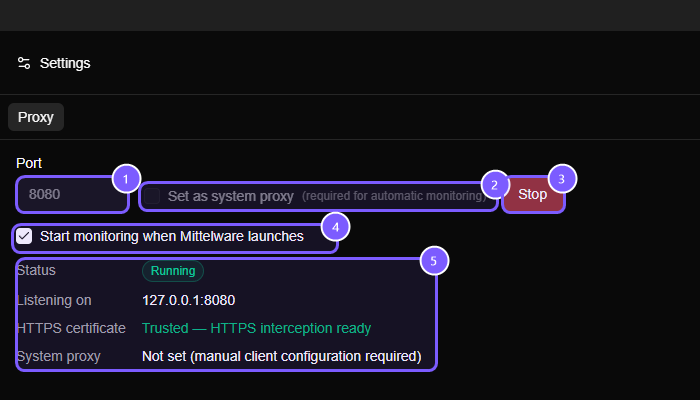
- Port. The door the proxy listens on. The default is
8080. If that port is taken, Mittelware picks the next free one. - Set as system proxy. Makes every app on your computer send its traffic through Mittelware, automatically. It's off by default. You can only change it while monitoring is off, which is why it's greyed out in the screenshot.
- Stop (or Start when it's off). The same on/off control as the sidebar switch.
- Start monitoring when Mittelware launches. Handy once you use Mittelware daily.
- Status. Check that the proxy is Running, that it listens on
127.0.0.1:8080, and that the HTTPS certificate reads Trusted.
NOTE
This tutorial leaves Set as system proxy off, so Mittelware never changes your computer's settings. Instead, you'll point one browser at Mittelware directly in the next step.
4. Open a browser through Mittelware#
Go to the Applications page.
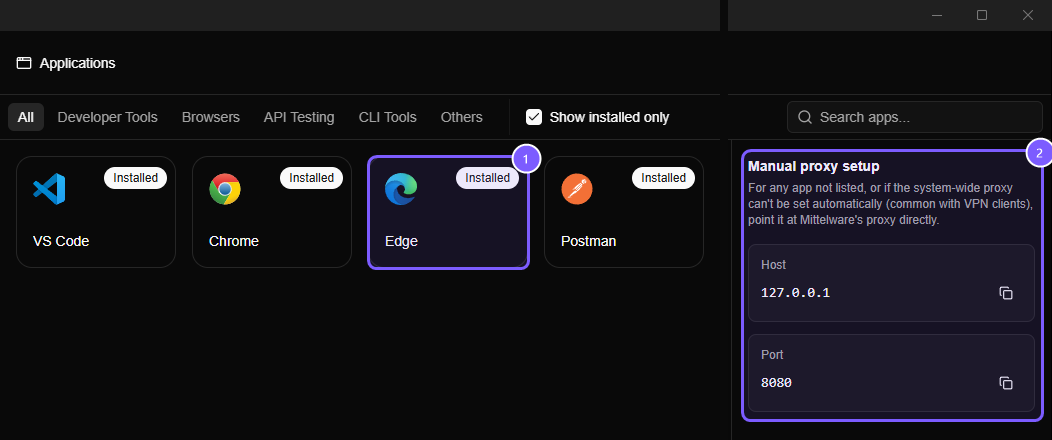
- Each card is an app Mittelware knows how to route through itself. By default only apps installed on your machine are listed.
- Manual proxy setup shows the host (
127.0.0.1) and port (8080) with copy buttons, for apps that aren't listed.
Click the card for your browser, for example Edge or Chrome.
WARNING
If the browser is already open, Mittelware closes it first and starts a fresh copy, because the proxy setting only applies to a brand-new process. Save anything you're working on before you click.
The browser reopens, and from now on its traffic flows through Mittelware.
5. Make a request#
In that browser, go to this address:
https://jsonplaceholder.typicode.com/users/1JSONPlaceholder is a free practice server that returns made-up data, so it's safe to experiment with. You should see a block of text about a fictional user called Leanne Graham. That text is the response body, written in JSON.
TIP
Use a private or incognito window for this tutorial. Browsers send a steady stream of background requests (updates, search suggestions), and a private window keeps most of that noise out.
6. Find your request in Flows#
Switch to the Flows page. A browser makes dozens of background requests on its own, so to find yours, type jsonplaceholder into the Search by URL box.
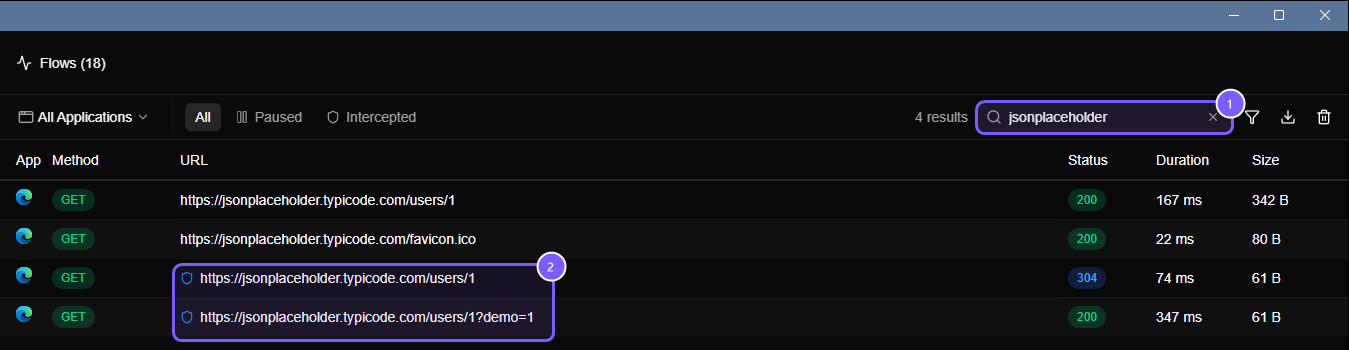
Each row is one request and its response:
- App shows which application sent it (the Edge logo here).
- Method is
GET, meaning "please read this". - URL is the address. A small shield icon (marked 2 in the picture) appears when a rule matched the request. You'll see one soon.
- Status is the result.
200is green and means it worked.304is blue and means "not modified". - Duration is how long the server took. Size is how much data came back.
Along the top, All, Paused and Intercepted narrow the list, and All Applications limits it to chosen apps. See Reading the Flows page for every control.
7. Open the request and read it#
Click the row for /users/1. A Details panel opens on the right.
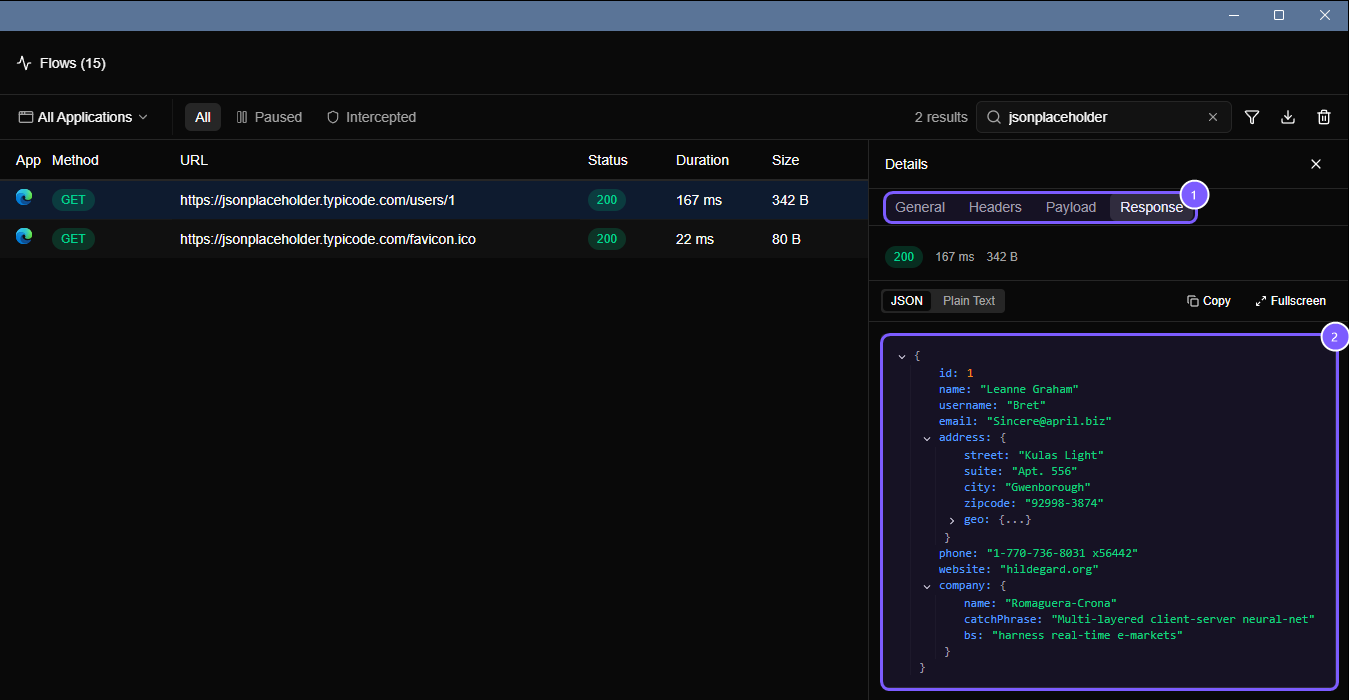
- The four tabs: General, Headers, Payload and Response.
- The response body, nicely formatted.
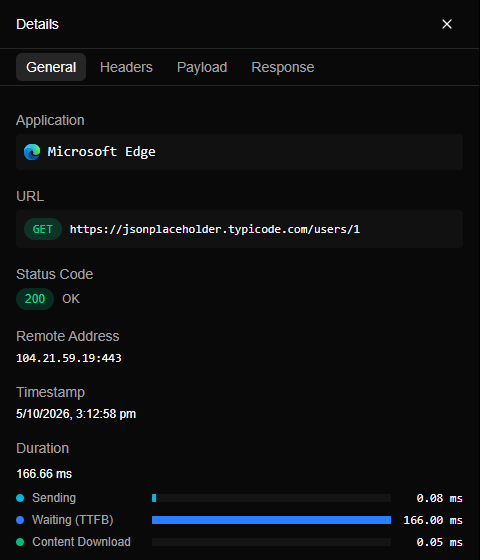
Click through the tabs. General is a summary: the application, the URL, the status code, the server's address, when it happened, and a timing breakdown (time spent sending, waiting for the server, and downloading).
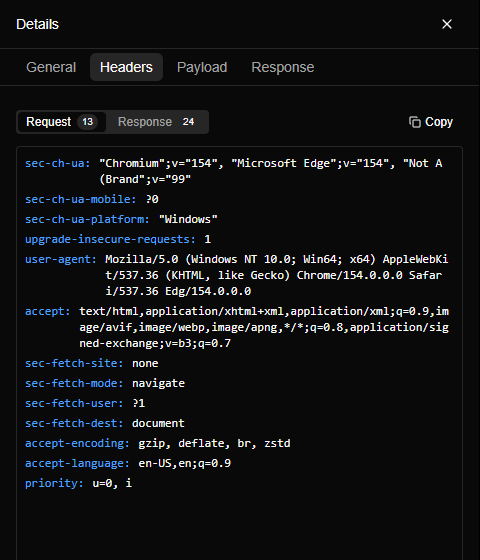
Headers has two sides, the Request headers your browser sent and the Response headers the server returned. They're the "extra notes" described in Start here.
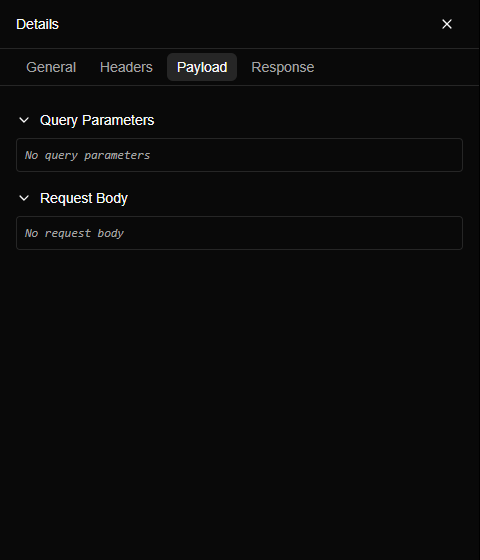
Payload shows what was sent with the request: Query Parameters and the Request Body. This request is a plain GET with neither, so both say "No ...".
Response is the screenshot above: the status, timing, size and the body. You can switch between JSON and Plain Text, Copy it, or Expand it.
You have just done the first thing Mittelware is for: seeing exactly what your app asked for and what it got back.
8. Change a response with a rule#
Now the fun part. You'll tell Mittelware: whenever the browser asks for /users/1, ignore the real answer and return one you wrote.
Rules do this. The full walkthrough, with a screenshot of every field, is on the Rules page. The short version:
| Field | What to enter |
|---|---|
| Source | Your browser (for example Microsoft Edge) |
| Label | Docs: fake user |
| When… | URL, contains, jsonplaceholder.typicode.com/users/1 |
| Then… | Modify Response, with a Body of {"id": 1, "name": "Ada Lovelace", "email": "ada@example.com"} |
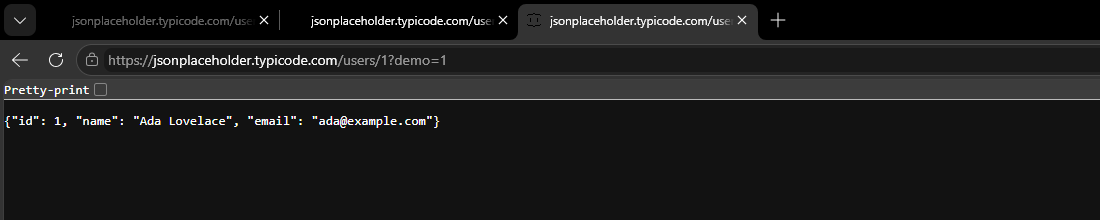
Save the rule, then load https://jsonplaceholder.typicode.com/users/1?demo=1 in the browser. The server still sends Leanne Graham, but the browser shows your Ada Lovelace instead.
Back in Flows, the row gets a shield, and its details say which rule ran:
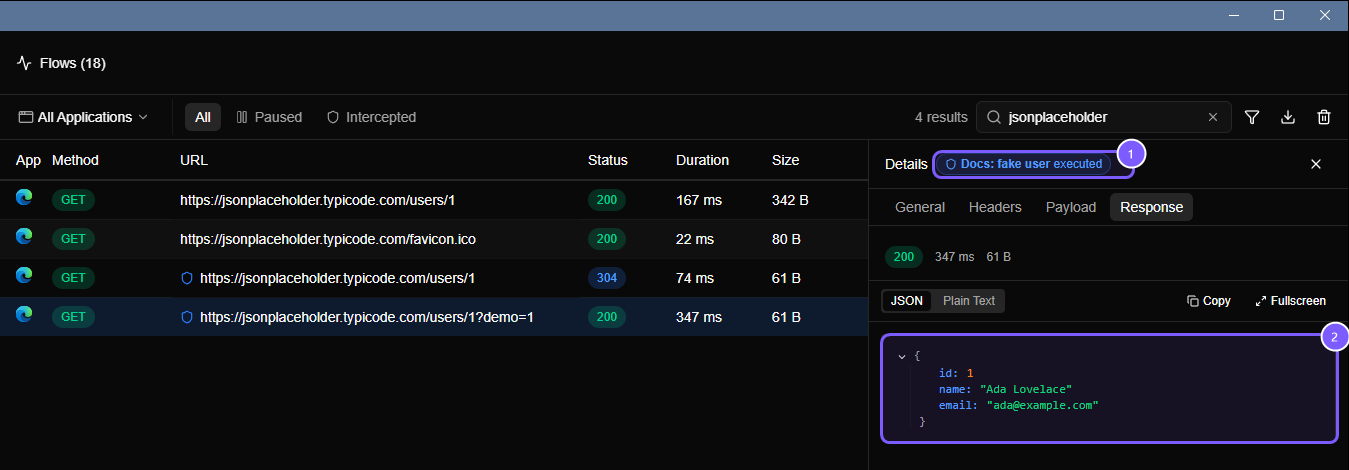
That's the core of Mittelware: watch, then change. Everything else is a variation on it.
9. What next?#
- Reading the Flows page covers searching, filtering, pausing and exporting.
- Rules lists every condition and action.
- Template variables let a rule reuse parts of the request, such as its path.
- The blog has short how-tos for common jobs, like mocking an API before it exists.
Troubleshooting#
- Nothing shows up in Flows. Check the status under Mittelware's name says Monitoring. Then make sure the app is really going through the proxy: launch it from the Applications page, or turn on Set as system proxy. Some apps ignore the system proxy. See Opening apps through Mittelware.
- The browser warns the connection isn't private. The certificate isn't trusted yet. See HTTPS & certificates.
- My rule matched (there's a shield) but the page didn't change. Browsers often keep a saved copy of a page and ask the server only "has it changed?". If the server says
304 Not Modified, the browser shows its saved copy and ignores everything else, including your replacement. Reload withCtrl + Shift + R(Cmd + Shift + Ron macOS), or add something to the URL like?demo=1, so the browser asks fresh. - One app still isn't visible. Apps that pin their own certificates can't be inspected. Bodies over 32 MB aren't captured, though responses that arrive in pieces, like an AI chat answer, are: see Streaming responses.
Still stuck? Get in touch.