
Modify Response
Change the status code, headers or body of a response before your app receives it, to mock an API, fake an error, return unusual data or test a fix without touching the server.
Modify Response changes an answer on its way back. The server replies as it normally would, and Mittelware swaps in your version before your app sees it. It's the most flexible action in Mittelware, and the one you'll use most.
Typical uses:
- Mock an endpoint that doesn't exist yet: Mock an API before it exists.
- Fake an error: a
500with a JSON error body, to see the error screen. - Return unusual data: an empty list, a
nullwhere your code expects a string, a huge number. - Test a fix: edit the response by hand to check whether the bug is in the server's data or in your code, before you change either.
- Add or remove a header, such as a CORS header or a cache header.
- Stream an answer in pieces, like an AI chat API: Stream a response.
The three parts#
Choose Modify Response under Then…, then click Add to pick which parts to change.
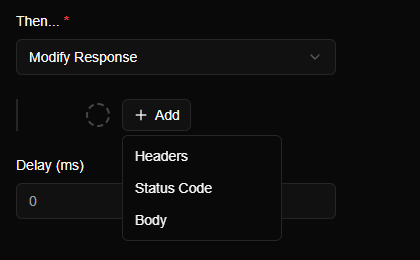
| Part | What you can do |
|---|---|
| Status Code | Replace the status, for example 200, 404 or 500 |
| Headers | Set a header (adding it, or replacing the existing value) or Remove it. You can add several rows |
| Body | Replace the whole body. Typed in as Raw, loaded From file, or sent in pieces as a Stream |
Every part is optional, and each can be added once. Anything you don't set passes through from the real response untouched. A rule that only sets a header leaves the status and the body exactly as the server sent them. To replace a response entirely, as a mock does, set the status, the headers and the body yourself. The steps run from top to bottom.
Body#
The Body step has three modes:
| Mode | What it does |
|---|---|
| Raw | The text you type into the editor, sent all at once. The editor highlights template variables and has an Expand button for long bodies |
| From file | The contents of a file on your disk, read each time the rule runs. Handy for a large JSON document you'd rather keep in your editor. Text files can use template variables too; a binary file such as an image is sent as it is |
| Stream | The text you give it, cut up and sent a piece at a time with pauses, like an AI chat answer. See Stream a response |
When a body is replaced, Mittelware corrects the response's Content-Length and removes any Content-Encoding, because your new body is plain and its size is known. A Content-Type isn't guessed for you: if the server's original was text/html and you replace the body with JSON, add a Headers step that sets Content-Type: application/json.
If a From file body can't be read, say because the file was moved after you saved the rule, that step is skipped and the real body goes through. Check Flows if a mock doesn't seem to apply.
Example: a complete fake response#
This is the rule from the walkthrough: whenever the app asks for one URL, ignore the server's answer and return a fake user.
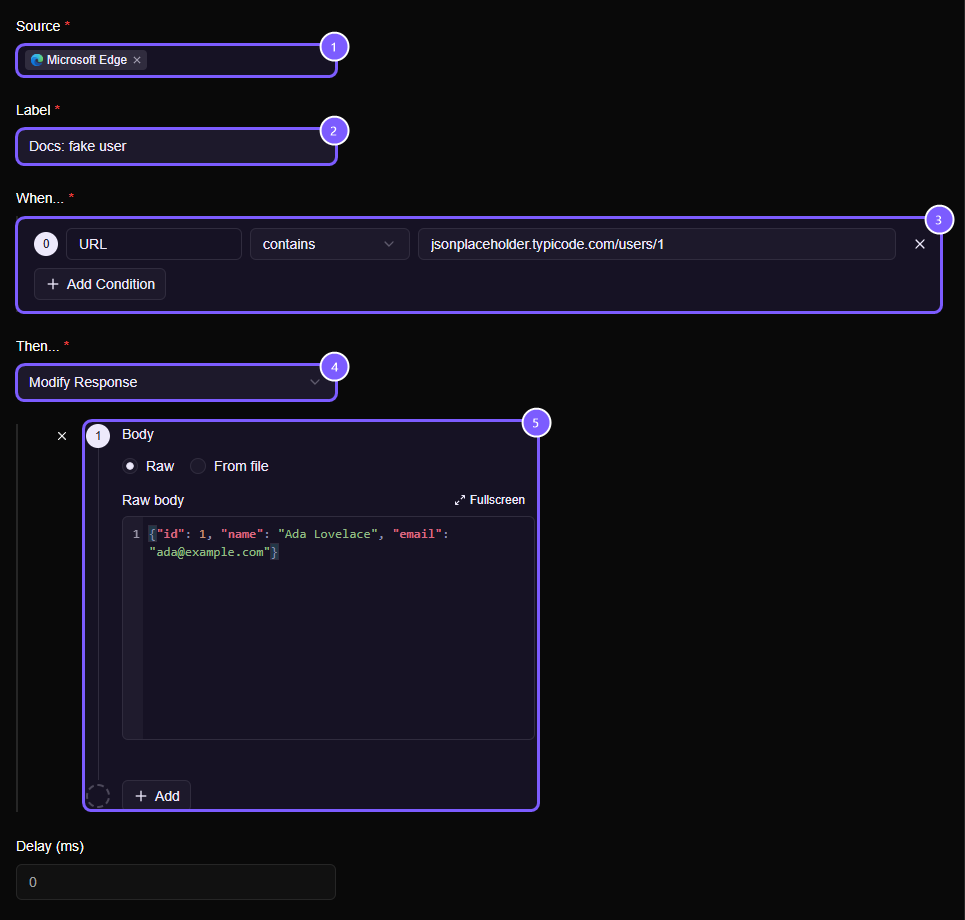
- Source: only Edge's traffic.
- Label: the name shown in the Rules list and in Flows.
- When…: the URL condition.
- Then…: Modify Response.
- The Body step, holding the replacement JSON.
Flows shows what happened. The badge at the top of the details panel names the rule that ran, and the Response tab shows the body your app actually received, not the one the server sent.
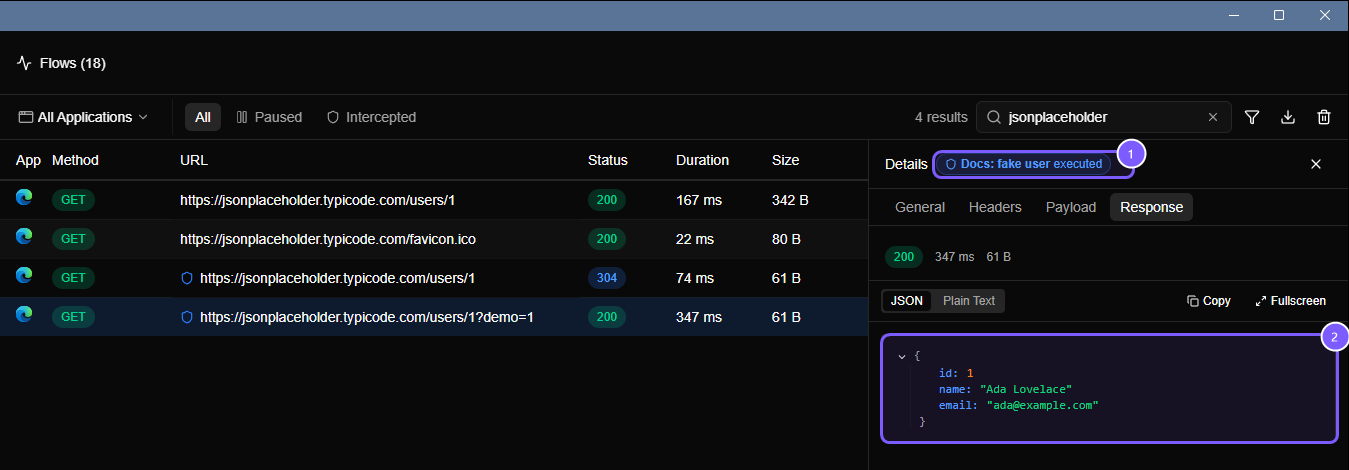
- The badge: Docs: fake user executed.
- The body that replaced the server's answer.
Request conditions and response conditions#
A Modify Response rule works with both kinds of condition.
- With request conditions only (a URL, a method…), the request goes to the real server, and the answer is changed on its way back.
- With a response condition (a status code, a header or part of the body), the rule only runs once the real response has arrived and matches. That lets you change only the answers that look a certain way, for example make every
500look like a503.
In a response-based rule, the {{response.status}}, {{response.body}} and {{response.headers.Name}} template variables are available too, so you can build a new body out of the real one.
WARNING
Modify Response lets the real request reach the server and only changes what comes back. If that request creates an order or takes a payment, it still happens, and your app just won't know. For a request with side effects, use Block Request so it never leaves your computer.
Ideas#
| To test… | Set up… |
|---|---|
| The error screen | Status Code 500, Headers Content-Type: application/json, Body { "error": "boom" } |
| An empty state | Body { "items": [] } |
| A missing field | Body with that field left out, or set to null |
| A slow response | Any change at all, plus the rule's Delay (ms): Test timeouts and slow responses |
| CORS | Headers → Set Access-Control-Allow-Origin to * |
| Whether a bug is in the server or in your code | Body edited to what the server should have sent: Why developers still need a network interceptor |
Good to know#
- A HEAD request has no body, so a body step is ignored for it. Status and header steps still apply.
- Everything unset is untouched, so you can also use this action to observe: set only a header such as
X-Debug: true, and the rule's badge in Flows shows you which requests matched. - A browser may keep a saved copy of a page and not ask for it again, or accept a
304 Not Modifiedand ignore your replacement. If a rule matched (there's a shield) but nothing seems different, hard-reload withCtrl + Shift + R. Rules explains why. - A rule changes a response only for the rule's Source apps. Other applications are left alone.