
Variables
Keep a token, a tenant name or a host in one place and use it in any rule as {{vars.name}}. Change it once and every rule uses the new value on the very next request.
A variable is a name with a text value that you set once and use in any rule. Think of a token you keep pasting into Authorization headers, a tenant name, a staging host. Instead of typing it into five rules, and finding all five when it changes, you store it as a variable and write {{vars.token}} wherever the value belongs.
Change the variable and every rule uses the new value on the very next request. You don't open the rules, and you don't save them again.
Variables are found under Variables in the sidebar, between Rules and Applications.
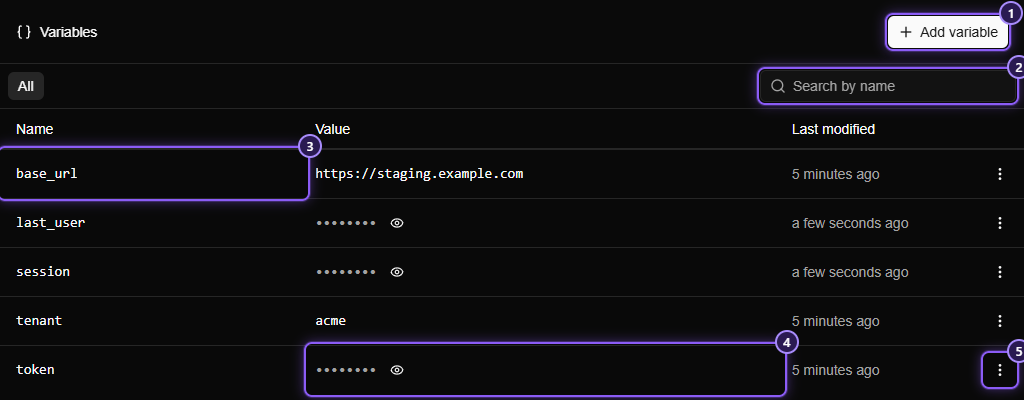
- Add variable opens the panel for a new one.
- Search by name narrows the list.
- A variable's name: what you write after
vars.in a rule. - A hidden value, shown as dots. The eye next to it shows or hides it.
- The row's menu: copy the
{{vars.name}}text, or delete the variable.
Click a row to edit it.
Add a variable#
Click Add variable. A panel opens on the right.
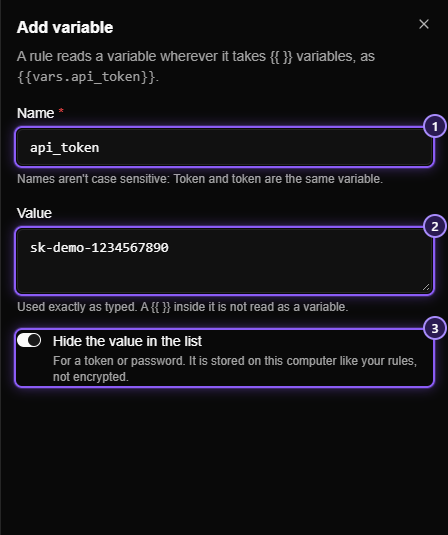
- Name. Letters, digits,
_and-, starting with a letter or_, up to 64 characters. Names aren't case sensitive:Tokenandtokenare the same variable, so you can't have both. - Value. Any text, up to 64 KB. It is used exactly as you type it: a
{{ }}inside a value is not read as a variable, and$1is just$1. - Hide the value in the list. Turn it on for a token or a password, and the list shows dots instead of the value until you click the eye.
Click Add variable to save. Problems show next to the field: a name that doesn't follow the rules, a name already taken, or a value over the limit.
WARNING
Hidden is not encrypted. The switch only keeps a value off the screen, for example while you share it. Variables are stored on your computer like your rules, in plain text, and they are used in requests exactly as typed.
Use a variable in a rule#
Wherever a rule field accepts template variables, write {{vars. and the name. A header value is the usual place:
Authorization: Bearer {{vars.token}}When you type {{vars., the suggestion list offers every variable you have.
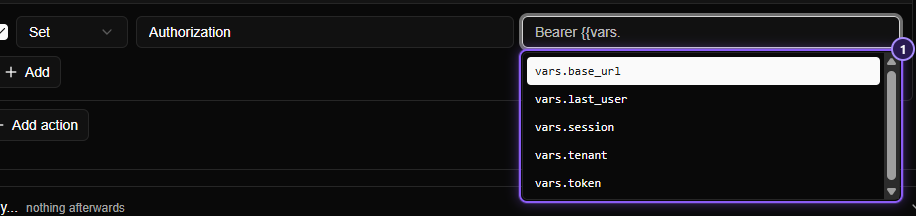
- The suggestions. Keep typing to narrow them, and press
Enterto insert one.
Variables work in the same places as the other template variables: URLs, headers, query parameters, bodies, and the fields of a WebSocket rule. You can mix them with the rest: https://{{vars.tenant}}.example.com{{request.path}}.
What to expect:
- Edits apply at once. Change a value on the Variables page and the next matching request uses it. No rule is saved or reloaded.
- A variable that doesn't exist reads as nothing. If you delete
token,Bearer {{vars.token}}becomesBearer, and the request still goes out. Mittelware notes that the variable isn't defined in its log, but the rule form doesn't warn about a misspelt name, so check the name if a header comes out empty. - Text that isn't a variable stays text.
{{vars.}},{{vars.a b}}and{{vars.a.b}}aren't valid names, so they are sent exactly as written.
Variables that rules create#
A rule can also set a variable by itself, from what passes through it: keep a session ID from a login response, a token from a header, a value from a request. That's what the Finally… section does, and it is how a login in one rule can feed the requests handled by another.
A variable a rule creates starts hidden, because it is most likely a token or a cookie. The Variables page shows it as soon as it exists, without reopening the page. In the screenshot above, session and last_user were made by a rule. If you already had a variable with that name, the rule keeps its name and visibility and only changes its value.
Search and long lists#
The search box above the table looks at names only, in any case. It never looks inside values, so a hidden value can't be found by guessing at it. _ and % match themselves, so searching for user_ finds user_token, not userAtoken. Clearing the box brings the full list back.
The list loads in pages as you scroll, so it stays quick with hundreds of variables. It is sorted by name, ignoring case. When you edit or delete one, the list keeps its place.
Delete a variable#
Open the row's menu and choose Delete, then confirm. Rules that read it then get nothing for it, as described above. To keep a copy of the template text, choose Copy variable template first, which copies {{vars.name}}.
Variables and exported rules#
A rules file written by Export carries rules, not variables. After importing rules on another computer, add the variables they use there. Until you do, those tags read as nothing. This also means a token you keep in a variable never ends up in a file you share. See Export and import rules.