
Phones and other devices
Send a phone, a tablet or another computer's traffic through Mittelware over your Wi-Fi. Turn it on, scan a code, install the certificate, set the proxy, and watch the device's requests appear in Flows.
Mittelware doesn't only watch the computer it runs on. Any phone, tablet or other computer on the same Wi-Fi or network can send its traffic through it, so you can see what a mobile app or a mobile website really does: what it asks for, what comes back, and, with rules, change the answer.
If words like "proxy" or "certificate" are new, read Start here first. This page covers the whole journey. Two sub-pages go into detail for each device:
- Set the proxy on the device, with an automatic (one address) and a manual way.
- Install the certificate, so Mittelware can read HTTPS.
Building the app yourself? See Testing your own app too.
Turn it on#
Open Settings, then the Proxy tab, and switch on Allow other devices on my network. It is off until you turn it on, because it lets anyone on your network send traffic through Mittelware.
It takes effect straight away. Nothing restarts, and apps you opened from Mittelware stay open. Mittelware listens on one more port for your network (the proxy's port plus one, so 8081 when the proxy is on 8080), and the card says which address:
Listening for devices at
192.168.0.119:8081.
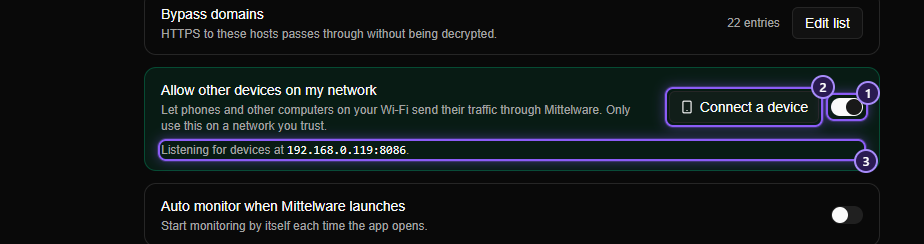
- The switch.
- Connect a device opens the setup panel. It appears once the switch is on.
- Where Mittelware is listening for devices.
Only devices on a private network (the kind your router hands out, such as 192.168.x.x or 10.x.x.x) are accepted. Anything else is refused.
Windows asks to allow it#
The first time, Windows Defender Firewall shows a Windows Security Alert. Tick Private networks and Public networks, then click Allow access. Windows treats many home Wi-Fi networks as "Public", and ticking only Private would leave your phone blocked.
WARNING
Don't click Cancel on that alert. Windows then saves a block rule, never asks again, and your phone just times out. To undo it, open Windows Defender Firewall with Advanced Security, go to Inbound Rules, delete the two Mittelware rows whose action is Block, and restart Mittelware. The alert comes back.
If the alert never appears, Windows' notifications for it may be turned off. In Windows Defender Firewall, open Change notification settings and tick Notify me when Windows Defender Firewall blocks a new app, then turn the switch off and on again.
macOS may ask whether Mittelware should accept incoming connections. Choose Allow.
Connect a device#
Click Connect a device, next to the switch in Settings. The same panel opens from the Network device card on the Applications page, which appears once the setting is on.
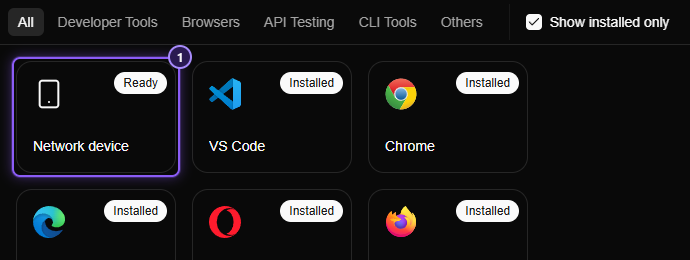
- The Network device card. It follows the category tabs (All and Others) and the search box, and it is never hidden by Show installed only. If monitoring was off, it starts.
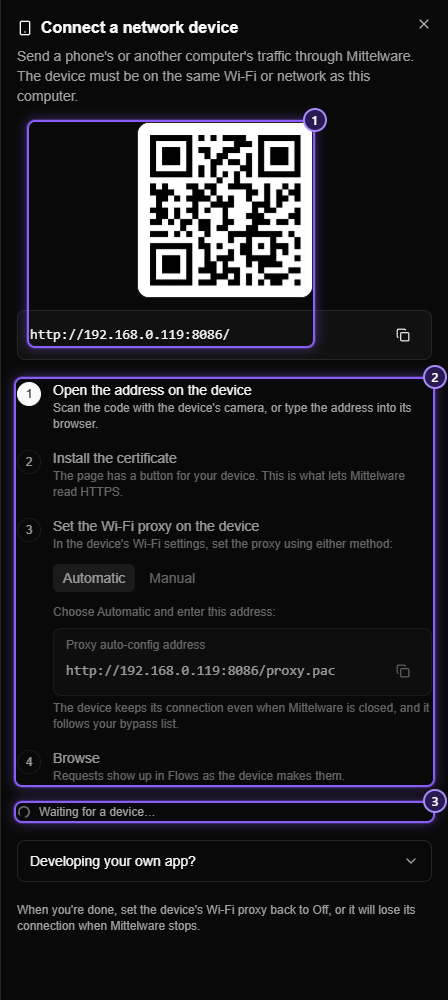
- The QR code and the same address in writing, for a device without a camera.
- The four steps.
- The list of devices seen so far. It starts empty: Waiting for a device….
The panel shows a QR code and the same address in writing, for a device without a camera. Then it walks through four steps, and ticks each one by itself as it sees the device do it:
- Open the address on the device. Scan the code with the phone's camera, or type the address into its browser. A setup page opens, with instructions for the device it's on.
- Install the certificate. The page has a button for your device. Without it, HTTPS sites can't be read. Details per device.
- Set the Wi-Fi proxy. Choose Automatic and enter the address shown (it ends in
/proxy.pac), or choose Manual and enter the server and port. Details per device. - Browse. Open any site or app on the device. Its requests appear in Flows.
NOTE
The setup page is plain HTTP, so a browser may call it "Not secure". That is expected here: the device can't trust Mittelware yet. The address is on your own network, and the page only offers Mittelware's public certificate.
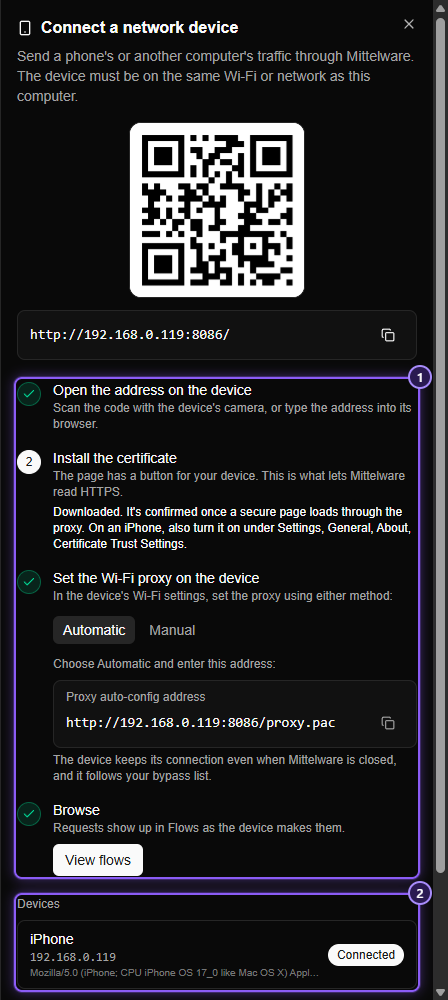
- The steps tick themselves off as the device does each one.
- The device, named from its browser, with the furthest step it has reached.
The panel lists each device it has seen, with what it has done so far: Page opened, Certificate downloaded, Connected. Mittelware can tell that the certificate was downloaded, but not that you then installed and trusted it. On an iPhone there is a second, easy-to-miss switch for that. See Install the certificate.
What you'll see in Flows#
A device's requests are listed with everything else. In the App column, where a request from your computer shows the app's icon, a request from a device shows a phone, tablet or computer icon (a Wi-Fi symbol while the kind of device isn't known yet), so you can tell at a glance which rows came over the network. Hover the icon to read the device's name, made from its browser, such as iPhone (192.168.0.23).
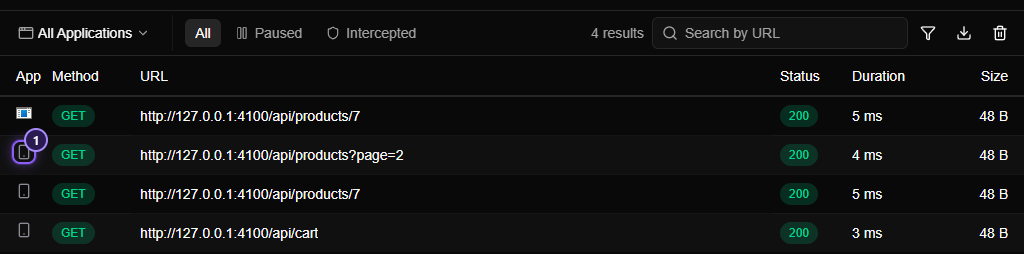
- The phone icon marks a request that came over the network.
On a device, Mittelware can't know which app sent a request. That information only exists on the computer that runs the app. So requests from a phone are labelled by device, not by app.
Rules for devices#
A rule's App can be a Network device. Open the App box on the rule form and Network device is pinned at the top of the list, whenever Allow other devices is on. Pick it and the rule applies to every request from every device on your network.
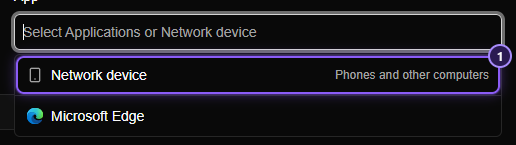
- Network device. The box's hint then reads Select Applications or Network device.
- A rule must name at least one app, up to five, and Network device counts as one of them. So a rule can be for apps only, for devices only, or for both: pick Network device along with up to four apps.
- A rule scoped to apps never applies to a phone, because a phone has no app on your computer to match.
- A rule scoped to Network device applies only to devices.
See Rules for how sources, conditions and actions fit together.
Turn it off#
Switch Allow other devices on my network off, or quit Mittelware. The extra port closes at once.
TIP
If you used the Automatic proxy address, a phone keeps working when Mittelware is closed, because the script falls back to a direct connection. With a Manual proxy it loses its connection until you set the proxy back to Off.
When it doesn't work#
| What happens | Likely reason |
|---|---|
| The address times out on the phone | Windows Firewall is blocking it (see above), the phone is on a different network (mobile data, a guest Wi-Fi), or the router has "client isolation" or "AP isolation" turned on. |
| The setup page opens but nothing appears in Flows | The phone's Wi-Fi proxy isn't set yet, or it was set on another network. Check step 3. |
| Chrome's sites appear but other apps' don't | Many apps ignore the Wi-Fi proxy, or refuse certificates you installed yourself. Android is strict about this. See why some apps don't show. |
| Secure sites show a certificate warning | The certificate isn't installed or trusted on the device. See Install the certificate. |
| The panel says "This computer doesn't seem to be on a network" | Connect to Wi-Fi or Ethernet, then open the panel again. |
Why some apps don't show#
Three things can keep an app out of Flows, and none of them are Mittelware being broken:
- The app ignores the proxy. Some apps, games, and anything built with Flutter use their own connection and never ask the system for a proxy.
- The app doesn't trust certificates you install. Since Android 7, apps only trust a user-installed certificate if their developer allows it. Browsers like Chrome do. Most other apps don't, and the connection quietly fails.
- The app pins its certificate. It accepts only its own server's certificate, so no proxy can read it.
On a regular phone there is no setting that gets around the second and third. For an app you build, there is a fix: Testing your own app.
In this section
- Set the proxyHow to point a phone, tablet or computer at Mittelware with one address (automatic proxy configuration) or with a server and port (manual), on iPhone, Android, Mac and Windows.
- Install the certificateInstall and trust Mittelware's certificate on an iPhone, iPad, Android phone, Mac or Windows PC so HTTPS traffic from that device can be read, and how to remove it again.
- Your own appMake a mobile app you are developing show up in Mittelware's Flows. What to change in an Android, Flutter, React Native or iOS app, and how to use an emulator or simulator.