
Set the proxy on the device
How to point a phone, tablet or computer at Mittelware with one address (automatic proxy configuration) or with a server and port (manual), on iPhone, Android, Mac and Windows.
A device sends its traffic through Mittelware once its Wi-Fi proxy is set. There are two ways to set it. Pick one.
| Automatic | Manual | |
|---|---|---|
| What you enter | One address, ending in /proxy.pac |
A server and a port |
| If Mittelware is closed | The device keeps working. It connects directly. | The device loses its connection until you turn the proxy off. |
| If your computer's address changes | Enter the new address | Enter the new server |
| Best for | Most people | Devices or apps that don't understand the automatic option |
The values to enter are shown in Mittelware's Connect a device panel, and on the setup page the device opened. Both have a Copy button next to each value.
NOTE
The proxy belongs to one Wi-Fi network on the device. When you join another network, or the device switches to mobile data, it stops using it. Set it again if you come back.
Automatic: one address#
The address looks like this:
http://192.168.0.119:8081/proxy.pac
It is a tiny file (a proxy auto-config script) that tells the device to send everything to Mittelware, and to connect directly if Mittelware isn't there. It is served by Mittelware itself, so it is only reachable while Mittelware is running and Allow other devices is on.
The script also follows your bypass list: hosts on it connect directly, so they skip the proxy altogether, just like for apps opened from Mittelware. It is built from the live list each time the device asks, so a change in Settings is in the next copy the device fetches. Devices keep a script for a while, so if you edit the list and want it to apply right away, turn the phone's Wi-Fi off and on to make it ask again. (Mittelware applies the list on its own side too, immediately, to anything that still reaches it.) The manual setting has no such list: everything goes to Mittelware, and the bypass list only decides what Mittelware leaves undecrypted.
iPhone and iPad#
- Open Settings, then Wi-Fi.
- Tap the (i) next to your network.
- Scroll down and tap Configure Proxy, then choose Automatic.
- Paste the address into URL and tap Save.
Android#
The menus differ a little between phones.
- Open Settings, then Wi-Fi (or Network & internet, then Wi-Fi).
- Tap your network (or its gear icon), then the pencil or Modify network.
- Open Advanced options and set Proxy to Proxy Auto-Config.
- Paste the address into PAC web address and save.
Mac#
- Open System Settings, then Network, then Wi-Fi, and click Details next to your network.
- Open Proxies and switch on Automatic proxy configuration.
- Paste the address into URL and click OK.
Windows#
- Open Settings, then Network & internet, then Proxy.
- Under Automatic proxy setup, switch on Use setup script.
- Paste the address into Script address and click Save.
Manual: server and port#
In the Connect a device panel, choose the Manual tab to see the server and port, each with a Copy button.
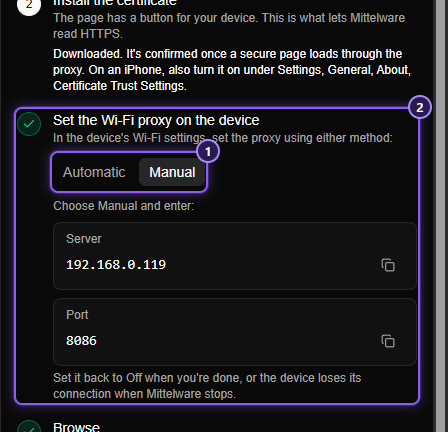
- The Automatic and Manual tabs.
- The Server and Port to type into the device.
Use the Server (your computer's address, such as 192.168.0.119) and Port (such as 8081) that Mittelware shows. They are for HTTP and HTTPS both.
iPhone and iPad#
- Settings, Wi-Fi, the (i) next to your network, Configure Proxy, Manual.
- Enter the Server and Port. Leave Authentication off.
- Tap Save.
Android#
- Open your network's settings as above, and open Advanced options.
- Set Proxy to Manual.
- Enter the Proxy hostname (the server) and Proxy port. Leave the bypass box empty, and save.
Mac#
- System Settings, Network, Wi-Fi, Details, Proxies.
- Switch on Web proxy (HTTP) and Secure web proxy (HTTPS). In each, enter the server and port.
- Click OK.
Windows#
- Settings, Network & internet, Proxy.
- Under Manual proxy setup, switch on Use a proxy server and click Edit.
- Enter the address and port, then Save.
Does it work?#
Open a site on the device. Within a second or two its requests should appear in Mittelware's Flows page, and the Connect a device panel shows the device as Connected.
Nothing appears:
- Check the proxy is set on the same Wi-Fi network the device is on right now.
- Check Allow other devices on my network is still on, and that Mittelware is monitoring.
- The device may be holding on to an old setting. Turn Wi-Fi off and on to make it ask again.
- See When it doesn't work.
Setting it back#
When you're finished, set the proxy to Off (or None) on the device. With the automatic address it keeps working either way, but there is no reason to leave it pointed at a computer that may be switched off.