
Install the certificate on the device
Install and trust Mittelware's certificate on an iPhone, iPad, Android phone, Mac or Windows PC so HTTPS traffic from that device can be read, and how to remove it again.
To show you what's inside HTTPS traffic, Mittelware needs the device to trust its certificate. On your own computer, Mittelware can do that for you. On a phone, you do it once by hand. HTTPS & certificates explains what that trust means and why it's safe.
The easy way to get the file is the setup page: scan the QR code in Mittelware's Connect a device panel, or open the address under it. The page notices what kind of device you're on and puts its steps first. This page lists the same steps with a bit more detail.
NOTE
Without the certificate, plain HTTP still shows up, but secure sites either show a warning or fail. If you only need HTTP, you can skip this.
iPhone and iPad#
The setup page puts an iPhone's instructions first, open, with the Download profile button.
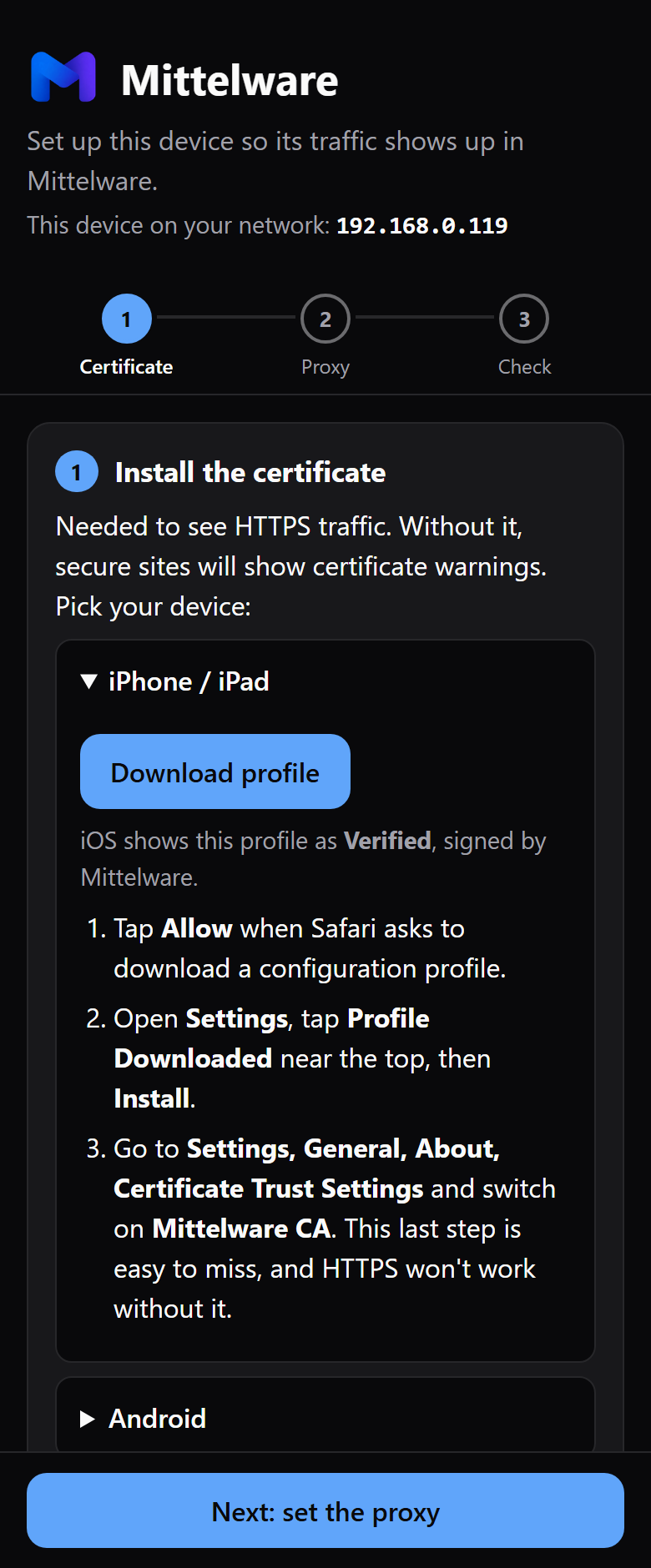
- Open the setup page and tap Download profile.
- Safari says "This website is trying to download a configuration profile." Tap Allow.
- Open Settings. Tap Profile Downloaded near the top, then Install, and enter your passcode. The profile is normally shown as Verified, signed by Mittelware. If Mittelware couldn't reach its signing service (you're offline, say), it shows Not Signed instead. That's fine and installs the same: Mittelware's certificate is made on your computer, not by a company Apple knows.
- Go to Settings, General, About, Certificate Trust Settings and switch on Mittelware CA under Enable full trust for root certificates.
WARNING
Step 4 is the one people miss. Installing the profile is not enough: until you switch the certificate on there, secure sites still fail.
To remove it: Settings, General, VPN & Device Management, tap Mittelware CA, then Remove Profile.
Android#
Android doesn't let a browser install a certificate by itself, so this is two parts: download the file, then install it from Settings.
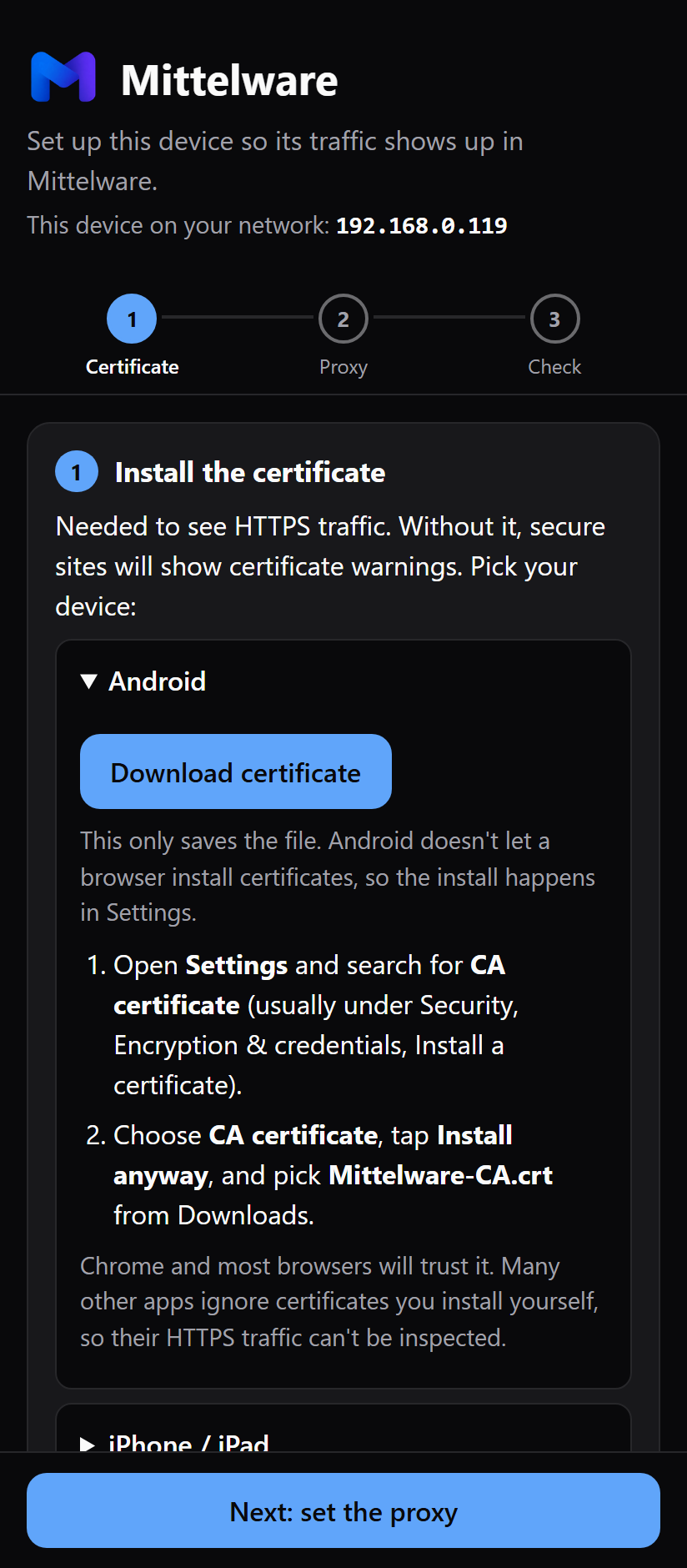
- Open the setup page and tap Download certificate. A file called
Mittelware-CA.crtis saved to Downloads. - Open Settings and search for CA certificate. It's usually under Security, Encryption & credentials, Install a certificate.
- Choose CA certificate and tap Install anyway on the warning. (The warning is about certificates in general, and it appears for every one you add.)
- Pick
Mittelware-CA.crtfrom Downloads. If your phone asks for a screen lock, set one first.
To remove it: Settings, Security, Encryption & credentials, User credentials, tap Mittelware CA, then Remove.
WARNING
Installing the certificate makes browsers such as Chrome trust Mittelware. Most other apps don't look at certificates you installed yourself, so their HTTPS traffic still can't be read. That is Android's rule, not a Mittelware setting. For your own app, see Testing your own app.
Mac#
- Open the setup page and click Download certificate (a
.pemfile). - Open the file. Keychain Access adds it.
- Find Mittelware CA in the list, double-click it, expand Trust, and set When using this certificate to Always Trust. Enter your password.
To remove it: delete Mittelware CA in Keychain Access.
Windows#
- Open the setup page and click Download certificate (
Mittelware-CA.crt). - Open the file and click Install Certificate.
- Choose Current User (or Local Machine for everyone on the PC), then Place all certificates in the following store, Browse, Trusted Root Certification Authorities, and finish.
To remove it: run certmgr.msc, open Trusted Root Certification Authorities, Certificates, and delete Mittelware CA.
Is it the right certificate?#
Every computer has its own Mittelware certificate, made the first time Mittelware runs. A phone that has trusted one computer's certificate doesn't trust another computer's. Install it again from the new computer's setup page.
If Mittelware ever makes a new certificate (it replaces one that has expired), reinstall it on the device the same way.
Is this safe?#
The certificate is a public file. Anyone can download it, and it can't be used on its own. What matters is that the private key stays on your computer, and it does: only the certificate is ever served to the device.
What trusting it means is that traffic sent through Mittelware can be read by Mittelware. Only trust it on devices you own, and remove it when you no longer need it. Note that the setup page is served over plain HTTP, so only download it on a network you trust.