
Export and import rules
Save your rules to a JSON file and load them back, to share them with a teammate, keep a backup or move to another computer, with what the file holds, how names are handled and what to check afterwards.
Export saves rules to a small file. Import adds the rules from such a file to the list. Together they let you:
- Share a rule with a teammate: send them the file instead of a list of steps.
- Keep a backup before you tidy up or reinstall.
- Move your rules to a new computer.
- Keep a library in your project, such as a
mittelware-rules.jsonin the repository, so anyone who joins can import the rules the team uses.
Both buttons are at the top of the Rules page.
Export#
There are four ways to export, and they differ only in which rules go into the file:
| How | What is exported | File name offered |
|---|---|---|
| Export, with nothing ticked | Every rule | mittelware-rules.json |
| Export (2), with two rules ticked (or however many you ticked) | Only the ticked rules | mittelware-rules-selected.json |
| Export in a rule's three-dot menu | That one rule | The rule's name, for example Fail checkout (502).json. Characters a file name can't have, such as / and :, become _ |
| Export collection in a collection's three-dot menu, or Export with that collection open and nothing ticked | Just the rules in that collection | The collection's name |
Click the button and a Save dialog asks where to put the file. When it's written, a message says what was exported: Exported 2 rules, or Exported "Fail checkout (502)" for a single rule. If you cancel the dialog, nothing is written. With no rules in the list, the message is There are no rules to export.
What is in the file#
The file is a JSON object with a rules list: one entry per rule, even when there is only one. The rules are in the order Mittelware tries them, which is the order of All rules (collection by collection, top first). This is what exporting Fail checkout (502) writes:
{
  "rules": [
    {
      "label": "Fail checkout (502)",
      "sources": ["Microsoft Edge"],
      "enabled": false,
      "action": "block_response",
      "conditions": [
        {
          "category": "url",
          "field": "fullUrl",
          "id": "6581deca",
          "operator": "contains",
          "value": "jsonplaceholder.typicode.com/todos/1"
        },
        {
          "category": "method",
          "field": "method",
          "id": "64819a0b",
          "operator": "is",
          "value": "GET"
        }
      ],
      "action_details": {
        "block_response": {
          "code": "502"
        }
      },
      "delay_ms": null,
      "collection": "Checkout flow"
    }
  ]
}| Field | What it holds |
|---|---|
label |
The rule's name |
sources |
The applications it applies to, by name |
enabled |
Whether the rule is switched on |
action |
Which action it performs, such as block_response, modify_request or ws_modify |
conditions |
Everything under When…, in order |
action_details |
Everything under Then…: the settings of the action, including the parts you switched off and the header rows you unticked |
delay_ms |
The Delay (ms), or null for none |
collection |
The name of the collection the rule is in |
What the file leaves out is what belongs to your copy of Mittelware: the rule's internal id, its position in the list and its dates. An imported rule gets new ones. The file doesn't carry your variables either: a rule that reads {{vars.token}} holds only that tag, never the token's value. Older files that are a bare list of rules, [ ... ], still import.
WARNING
The file is plain text, and it holds every value you typed into the rule. A rule that sets an Authorization header with a token typed in contains the token. (A rule that uses {{vars.token}} doesn't: the value stays on your computer.) Look through a file before you send it to anyone, and keep real credentials out of rules you plan to share.
Import#
Click Import at the top of the Rules page and choose a .json file, for example one that Export wrote. Mittelware reads it, adds the rules, and shows a message such as this one:

Importing adds rules. It never replaces or changes the ones you already have:
- Each rule is new. Importing the same file twice gives you two copies of every rule.
- They go into the collection the file names. A rule goes into the collection with that name, matched without regard to capital letters, and
Uncategorizedis the default one. A collection you don't have is made for you, and the message says how many were made. A file with no collection names (an older file) imports into the collection you have open, or into Uncategorized when you are looking at All rules. - They go to the top of their collection, in the order they are in the file. Rules are checked from the top, so imported rules take priority over the ones you had in that collection. See Order, and when two rules act on one request.
- On or off stays as it was in the file. A rule exported while switched on starts acting the moment it is imported.
- A name already in use is changed. Every rule needs its own name, so a rule called
Mock todois added asMock todo (imported)when you already have one, thenMock todo (imported 2), and so on. The message tells you how many were renamed.
TIP
To let a teammate look before anything runs, switch the rules off before you export them. They switch on the ones they want after they've read them.
When a file can't be imported#
If the file as a whole isn't usable, nothing is imported and the message says why:
| Message | What it means |
|---|---|
| This file isn't valid JSON. | The file isn't one Export wrote, or it was damaged or edited by hand into something that isn't JSON |
| This file has no "rules" list. Expected { "rules": [...] }, like Export writes. | The file is a JSON object, but it has no rules list |
| Expected a rules file like the ones Export writes: { "rules": [...] }. | The file holds JSON, but not a rules file at all |
| That file has no rules in it. | The list is empty |
| Rule 2 has no name. | The second entry has no label |
| "Mock todo" has no conditions list. | An entry is missing a part that every rule needs (conditions, action, action_details or a valid sources) |
| "Mock todo" has an invalid collection. | A rule's collection isn't text. A missing or blank collection is fine: it means "none named" |
If only some rules are the problem, the rest are still imported, and a warning lists what was skipped and why (up to three, with a count of the others):
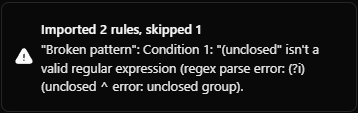
A rule is skipped for the same reasons the form wouldn't let you save it: a pattern that isn't a valid regular expression, no application, or more than five applications. Fix the rule in the file and import again. The rules that did import would be added a second time, so leave them out of the file, or delete the copies afterwards.
After importing: what to check#
Rules from another computer or another person are only as good as what they refer to. Open each imported rule and check:
- The application. A rule names its applications, such as Microsoft Edge. On a computer without that app, or where it has a different name, the rule imports fine and then never matches. Open it and pick the right App.
- Files. A body or payload that comes From file remembers the path on the computer it was exported from. If that file isn't there, it can't be read when the rule runs. Open the rule and choose the file again.
- Variables. A rule that reads
{{vars.name}}finds nothing until you add that variable on the Variables page. - Values that belong to someone else. Addresses, hosts, ports and tokens in the rule may point at another person's setup, such as a
localhost:3000server you don't run.
Editing the file by hand#
The file is ordinary JSON, so you can open it in any editor to rename a rule, change an enabled flag, or copy a rule's entry to make a similar one. Hand-written rules go through the same checks as imported ones: the easy way to learn the shape of an entry is to export a rule you made in the form and look at it.
Related#
- Rules overview
- Collections
- Variables
- Order, and when two rules act on one request
- Seven rule tricks you'll use every day: keep a library of rules