
Collections
Group your rules into collections, switch a whole collection on or off with one click, move rules between them, and decide which collection wins when two have a rule for the same request.
A collection is a named group of rules. Once you have more than a handful of rules, collections keep them tidy: one for the checkout flow you are testing, one for mocks, one for the staging setup you need every Monday. And because each collection has its own switch, you can turn a whole group off, or back on, in one click.
Collections live in a panel down the left side of the Rules page.
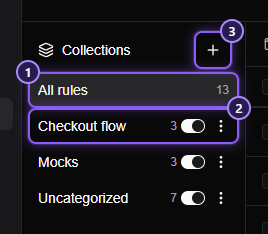
- All rules shows every rule from every collection. Its number is the total.
- A collection. Click its name to show only its rules. The number is how many rules it holds. The switch turns every rule in it off or on, and the three-dot menu renames, exports or deletes it.
- The + button makes a new collection.
NOTE
A rule is in exactly one collection, and you don't have to use collections at all. Every rule starts in Uncategorized, which always exists and holds everything made before collections did.
Make a collection#
Click +, type a name and press Enter. The new collection opens straight away, empty, ready for rules.
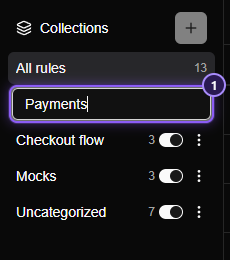
- The name box.
Names can be up to 60 characters, in any language, and two collections can't share a name, even if they differ only in capital letters. If a name is taken, too long or blank, the reason shows under the box and the box stays open so you can fix it.
New collections are added at the top of the panel. That matters for which collection wins.
Put rules in a collection#
There are three ways, and a rule can always be moved again later.
-
When you create it. The Create Rule form has a Collection box under Type. A new rule starts in the collection you were looking at when you clicked Create Rule, or in Uncategorized if you were on All rules.

The Collection box. Open it to pick another collection. - The Collection box.
-
Move several at once. Tick rules, then use Move to… in the bar above the table and choose a collection.
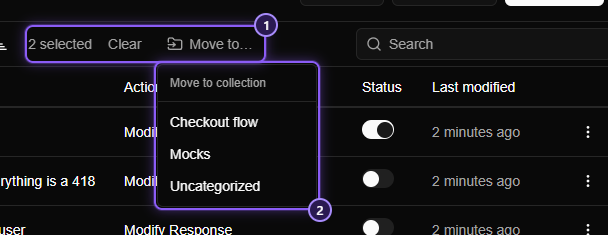
Move the ticked rules in one go. - The selection bar.
- The collections to move them to.
-
Move one. Open the rule's three-dot menu and choose a collection under Move to collection.
Moved rules go to the top of their new collection, keeping their order among themselves. Making a copy of a rule leaves the copy in the same collection as the original.
Switch a whole collection off#
Each collection's switch decides whether any of its rules run. It never changes the rules' own switches. That's what makes it safe to flip back and forth: switch a collection off and on again and exactly the rules that were on before are on again. A rule you had switched off by itself stays off.
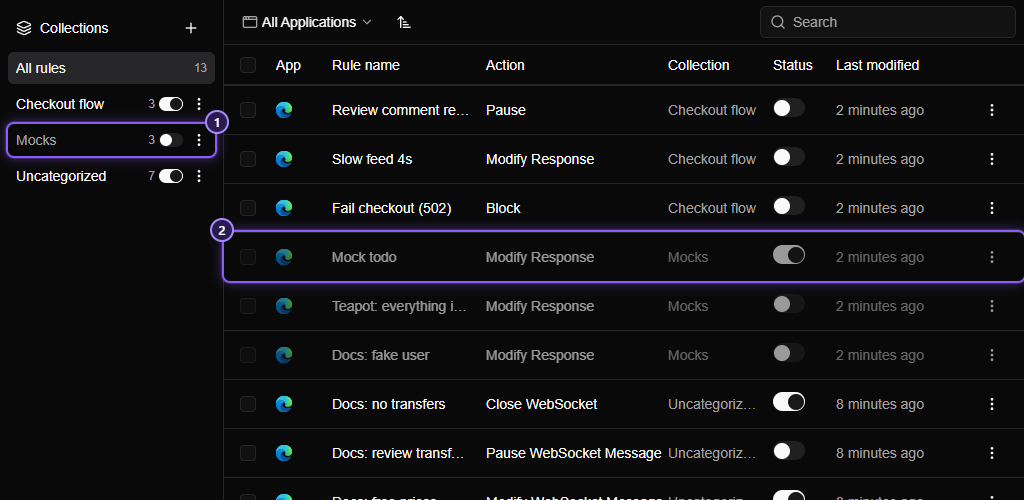
- The Mocks collection, switched off.
- One of its rules. Its own switch still reads on, but the row is dimmed.
A rule in a switched-off collection is dimmed, and hovering its switch says why: Its collection "Mocks" is switched off, so this rule isn't running. A rule runs only when both its own switch and its collection's switch are on.
Which collection wins#
Rules are checked from the top, and the top matching rule wins. With collections, the order is:
- The collections, in the order the panel lists them: newest first, Uncategorized last.
- Inside each collection, its rules, in the order the list shows them.
So when two collections each have a rule for the same request, the one in the collection nearer the top of the panel wins. Collections can't be dragged into a different order. If a rule in an older collection should win, move it into a newer one, or make the newer one's rule more specific.
TIP
All rules lists collection after collection in exactly this order, so what you read top to bottom is the order Mittelware tries them. Flip the sort button above the table to read it the other way round.
Rename, export, delete#
The three-dot menu next to a collection has three actions.
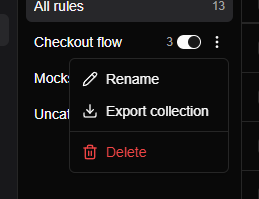
- Rename gives it a new name, under the same rules as a new one. Uncategorized can't be renamed.
- Export collection saves just that collection's rules to a file. It's greyed out when the collection is empty. See Export and import rules.
- Delete asks first. The collection goes, but its rules are not deleted: they move to Uncategorized, keeping their own switches and their order. Uncategorized can't be deleted.
If you delete the collection you were looking at, the list goes back to All rules.
Good to know#
- Search and filters apply to what you're looking at. Typing in the search box, or choosing an application in the filter, narrows the current view, and the search stays when you switch collection.
- A new view starts at the top. Pick another collection, search, or flip the sort, and the list shows its first row.
- The Collection column appears in the table under All rules, so you can see where each rule lives. Inside a single collection it would only repeat itself, so it's hidden.
- Empty collections say so. A collection with no rules reads No rules in this collection yet; a search with no match reads No rules match.
- Rules from before collections all went into Uncategorized, in the order they had, so nothing changed about which rule wins.