
When a normal API call misbehaves you can open the request, read it, and try again. A WebSocket doesn't give you that. The connection opens once and then stays open, messages fly both ways for as long as it lives, and by the time you notice something odd the interesting message is already gone.
So most people reach for the same workaround: write a throwaway client. A thirty-line Node script, wscat, a WebSocket tab in an API tool. It connects, it sends what you typed, and it prints what comes back. That helps, but it isn't your app. It doesn't send the messages your app sends, in the order your app sends them, with the headers and tokens your app has. The bug you were chasing often isn't there.
There is a way to debug the real app, talking to the real server, that needs no client of its own: sit in the middle of the connection and watch. This post shows how to do it with Mittelware, from reading a conversation to breaking one on purpose.
What you need#
- Mittelware, with monitoring on.
- The app that opens the WebSocket, opened through Mittelware (or any client pointed at its proxy).
- For
wss://(encrypted) connections, the certificate trusted, just as forhttps://.
If you don't have a WebSocket handy, the WebSockets page has a 20-line demo server and a one-line browser snippet.
NOTE
Browsers skip the proxy for localhost. If your server runs on your own machine, use a name that points back at it, such as localtest.me, or the machine's name. Why isn't my app's traffic showing up? covers this.
1. See the conversation#
Open Flows and use the app. A WebSocket shows up as one row with a WS badge, the address it opened (ws:// or wss://), and the status 101, which is the server agreeing to switch protocols. While the connection is alive a green open label stands in for the duration.
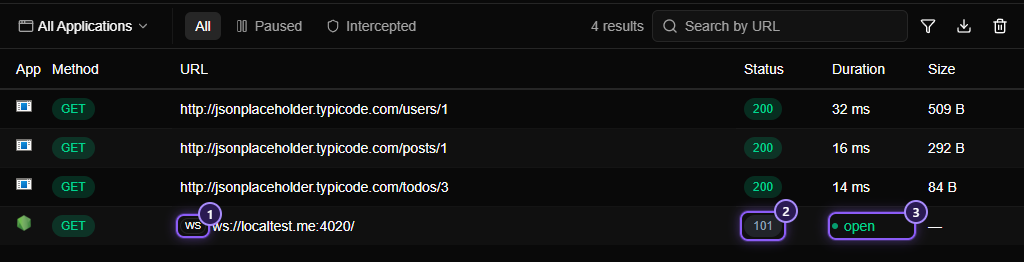
Click it and open the Messages tab. Every message is listed in the order it crossed the connection, with an arrow for its direction, how long after the connection opened it went through, its type and its size:
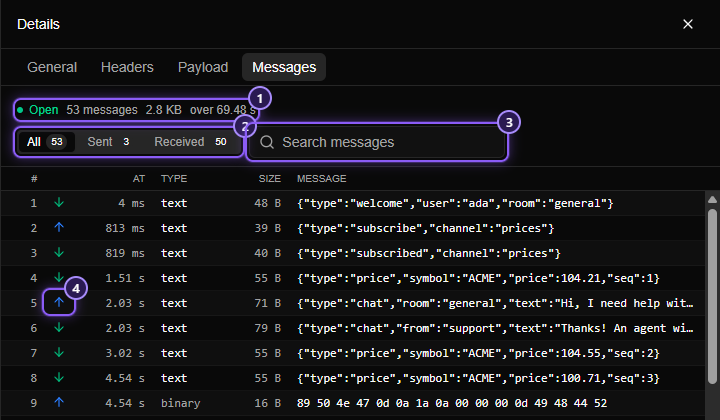
This alone answers more questions than you'd expect:
- Did my app actually send it? Filter to Sent and look.
- What did the server answer, and how long did it take? The At column is the clock.
- Is the connection alive or stuck? Pings and pongs are listed too, so a quiet but healthy connection looks different from a frozen one.
- Why did it end? The status line says whether it was Closed with a code and a reason, or Dropped with no goodbye at all.
Click a message to open it. JSON is laid out so you can read it, and a binary message is shown as a hex dump. The Messages tab guide goes through all of it.
2. Change a message on its way#
Now the part a script can't do. A WebSocket rule acts on single messages of a connection while your app keeps talking to its server.
Say the server sends prices and you want to see how the screen behaves when one is free. Create a rule with the type WebSocket (ws / wss):
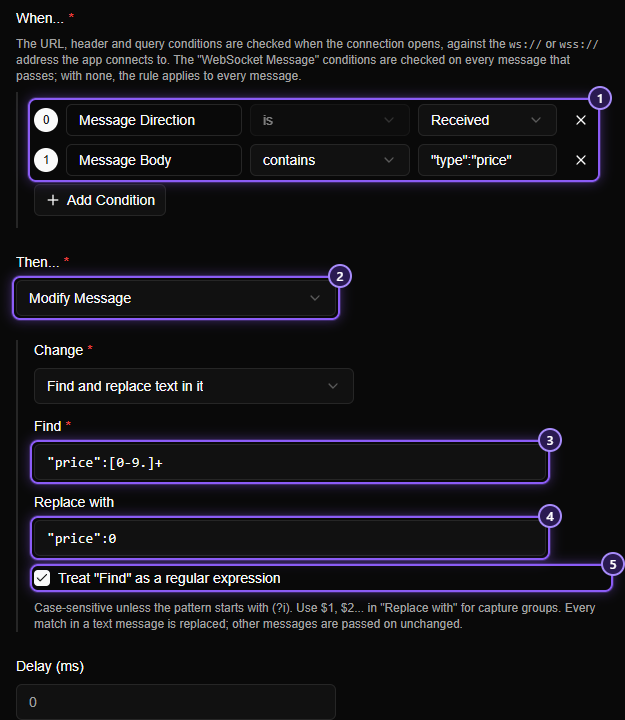
- When… Message Direction
isReceived, and Message Bodycontains"type":"price" - Then… Modify Message, finding
"price":[0-9.]+(as a regular expression) and replacing it with"price":0
Save it, then reconnect (a rule is looked at when a connection opens). Every price your app receives now says 0. The Messages tab keeps both versions, so you can compare:
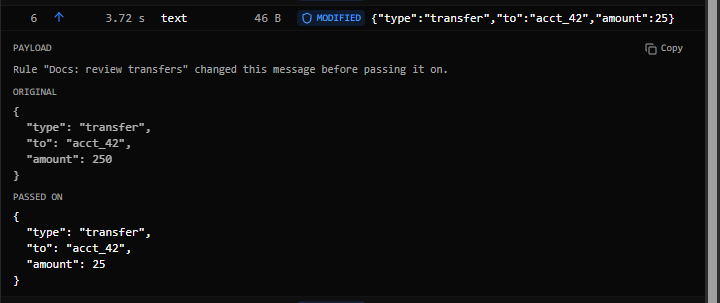
Your app has no way to know, and neither does the server. That makes it a cheap way to check how the UI copes with a zero, an empty string, a missing field or a value ten times too long, without touching either side.
3. Lose a message#
Real networks lose messages, and apps that wait for an acknowledgement can wait forever. Add a rule that matches the acknowledgement and choose Drop Message:
- When… Message Direction
isReceived, Message Bodycontains"type":"ack" - Then… Drop Message
The sender thinks it was delivered, the receiver never hears of it, and the connection stays open. The message is still listed in the Messages tab, with a red dropped label, so you can see exactly what your app never got.
WARNING
A Drop rule with no message conditions drops everything, heartbeats included, and most servers close a connection that stops answering pings. Always match the message you mean, or add Message Type is text.
4. Make it slow#
Delay Message holds matching messages back for the number of milliseconds you set, then passes them on. Set Delay (ms) to 1500 on messages received from the server and your live feed becomes a laggy one.
One behaviour is worth knowing because it's realistic: a delayed message queues up everything behind it in the same direction, as a slow connection would. Messages going the other way aren't held up. If the delay is what your reconnect logic or your spinner is meant to handle, you'll see it here.
5. Hold one message and edit it by hand#
Rules are right when you want the same change every time. Sometimes you want to look at one message, change one value, and see what happens. Pause Message is a breakpoint for a single message.
Match the message (for example Message Direction is Sent with Message Body contains "type":"transfer"), choose Pause Message, and trigger it in your app. The message stops before it reaches the server and opens in its own row:
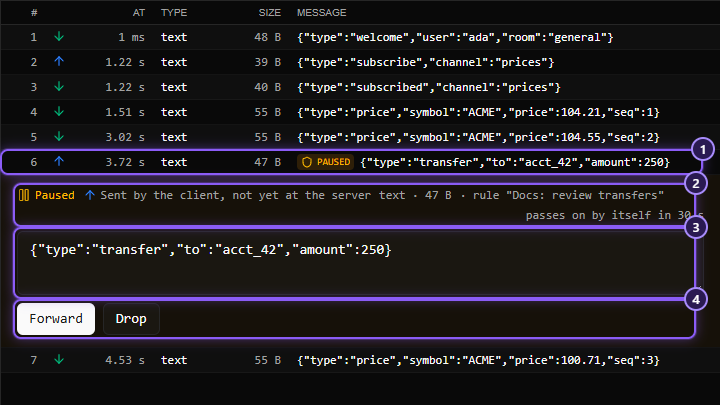
Change "amount":250 to "amount":-1 and press Forward edited, or press Drop to lose it. The message in the list then says what became of it. This is the quickest way to test a server's validation with a payload your own UI would never produce.
Two things to know:
- There's a 30-second countdown. If you do nothing, the message goes on exactly as it was. That's shorter than for a paused HTTP request, because a held message holds up everything behind it and servers drop clients that stop answering pings.
- Only text can be edited. A binary message can be forwarded or dropped, but not rewritten.
6. Close the connection from the middle#
Most apps handle "the connection dropped" badly, because it's hard to cause on demand. Close Connection ends it for you: pick a close code, add an optional reason, and the first matching message triggers it.
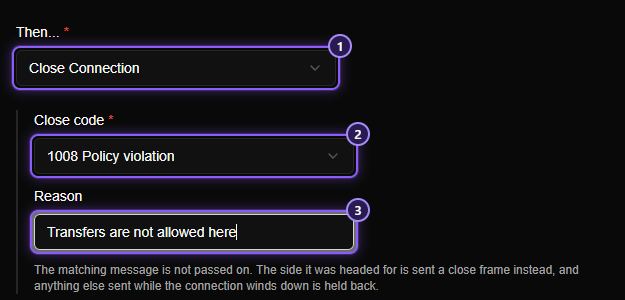
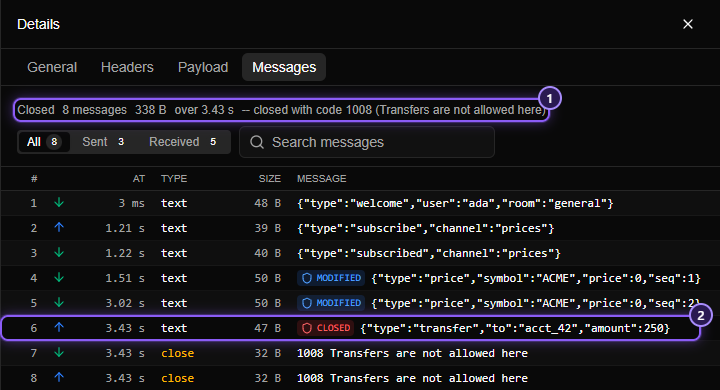
Try 1011, which says the server hit an error, and watch whether your app reconnects, how soon, whether it backs off or hammers the server, and whether it resends the message that was in flight. Then try 1008, which means "you broke a rule" and should usually not be retried at all. The Messages tab shows how the connection ended, and marks the message that matched with a red closed label:
Which rule for which question#
| You want to know… | Use |
|---|---|
| What is my app really sending, and in what order? | Just watch the Messages tab |
| How does the UI handle a strange value from the server? | Modify Message on received messages |
| Does the server really reject a bad payload? | Pause Message, edit, Forward edited |
| What if an acknowledgement or update never arrives? | Drop Message |
| What does the app do on a slow connection? | Delay Message |
| Does the reconnect logic work, and does it back off? | Close Connection with 1011 or 1001 |
| Can the app cope when the connection can't open at all? | A normal Block Request on the handshake |
Things to know#
- Reconnect after you save a rule. A rule is looked at when a connection opens, so one opened earlier keeps the rules it started with.
- The first matching rule wins each message. Put specific rules above general ones, and see Which rule acts on a message when one seems to be ignored.
- It changes messages that exist; it doesn't invent new ones. Mittelware can alter, drop, delay, hold or close what your app and server send. It doesn't send its own messages, so if you need to originate one your app never sends, reach for a client for that part, or pause a similar message and edit it.
wss://needs the certificate trusted, and a host on the bypass list is passed through undecrypted, so it shows as a loneCONNECTrow with no messages.- Compression is switched off (
permessage-deflateisn't passed on), so messages stay readable. Servers fall back without trouble. - Your app is never affected by the display limits. Mittelware keeps the first 10,000 messages or 8 MB of a connection and the first 64 KB of a message for display, but passes every message on in full.