
Reading the Messages tab
See every message of a WebSocket connection in order, which way it went, when, and how big it was. Search them, read JSON and binary payloads, and learn how a connection ended.
Every WebSocket flow has a Messages tab where its messages are listed, in the order they crossed the connection. It follows the connection live and keeps a record when it closes.
Select a WebSocket row in Flows and the details panel opens on the Messages tab. (A WebSocket's handshake has no response body, so it takes the place of the Response tab.) If you haven't opened a WebSocket yet, WebSockets has a small server to try this with.
The list#
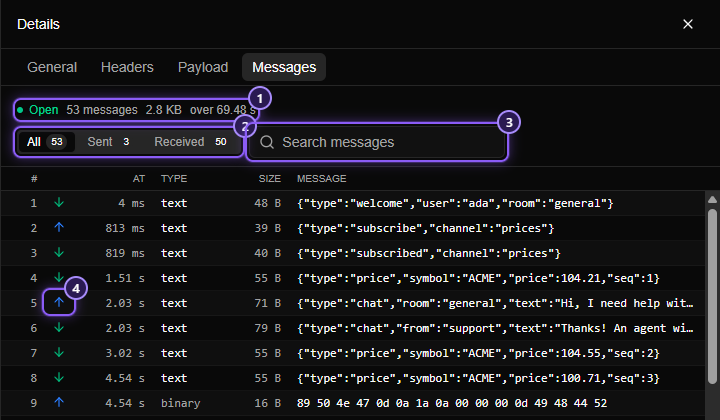
- The status line: whether the connection is Open (a pulsing green dot) or closed, how many messages it has carried, their total size and how long the connection has been going.
- The All / Sent / Received switch, each with a count.
- The search box.
- A sent message, marked by an arrow pointing up. Messages from the server have an arrow pointing down.
The columns#
| Column | What it shows |
|---|---|
| # | The message's position in the connection, starting at 1, counting both directions |
| (arrow) | An up arrow (blue) for a message sent by your app to the server, a down arrow (green) for one received |
| At | How long after the connection opened the message went through |
| Type | text, binary, ping, pong or close (see below) |
| Size | The size of the message's contents |
| Message | A one-line preview. JSON and text are shown as written; a binary message is shown as hexadecimal bytes |
The list follows the connection: it scrolls to each new message as it arrives. Scroll up to read earlier ones and it stops, so it won't jump away from what you're reading. Scroll back to the bottom and it picks the connection up again. It also stops while a message is held for review, so the one you are editing stays where it is.
Message types#
| Type | What it is |
|---|---|
| text | A message made of text, nearly always JSON. This is what most apps send |
| binary | Raw bytes: an image, a Protobuf or MessagePack message, a file chunk |
| ping | A "still there?" check. Either side sends one every so often to keep the connection alive and notice when the other end died |
| pong | The answer to a ping |
| close | A goodbye: a code and an optional reason, sent by whichever side ends the connection |
Pings and pongs are sent by the connection itself and are easy to miss in your own code, but they appear here, so a quiet connection that is alive looks different from one that is stuck.
Filtering and searching#
- All / Sent / Received narrows the list to one direction. The counts next to each name always cover the whole connection.
- Search messages looks for the text you type inside the messages, ignoring case. It reads the text of every message except binary ones, whose contents aren't searched.
When a filter hides everything the list says No messages match the current filter.
Reading one message#
Click a row to open it. The preview line becomes the whole payload, below it:
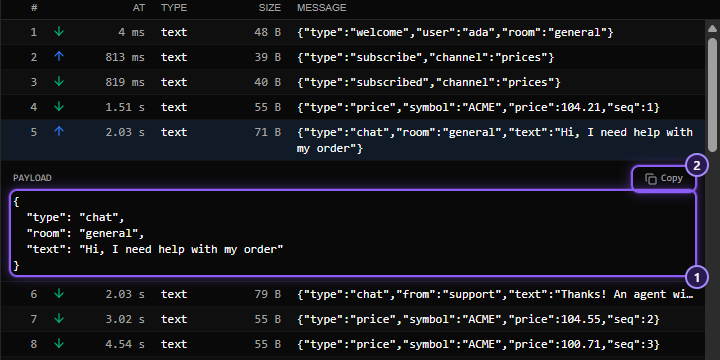
- The payload. JSON is laid out over several lines so it's easy to read, and anything that isn't JSON is shown exactly as it was sent.
- Copy puts the payload on your clipboard.
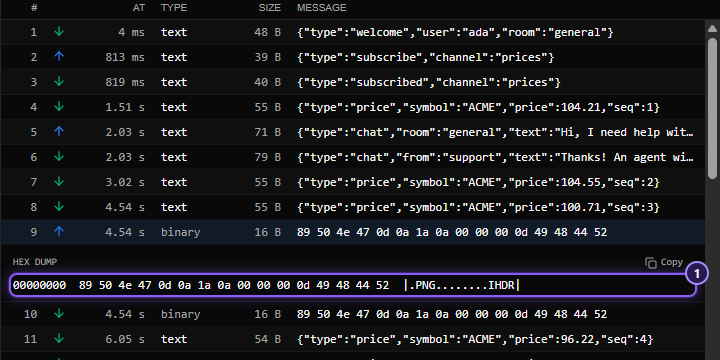
A binary message is shown as a hex dump: an offset, sixteen bytes in hexadecimal, and the same bytes as printable characters. It's the classic way to look at bytes, and it makes a magic number or a readable word easy to spot.
A message over 64 KB is marked first part only: only its start is kept for display. The message itself was passed on in full.
When a rule acted on a message#
If a WebSocket rule did something to a message, a small coloured label appears in front of its preview, and the opened message names the rule:
| Label | What happened |
|---|---|
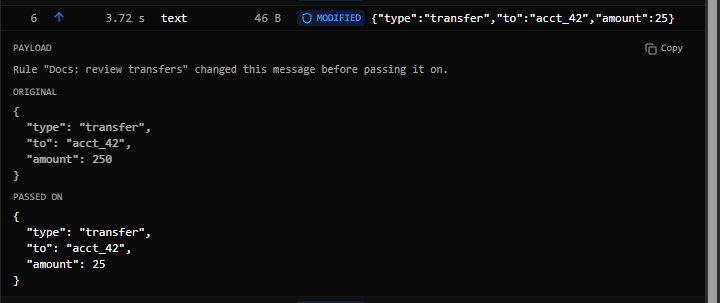
| modified | The rule changed the message before passing it on. Opened, it shows Original and Passed on |
| dropped | The rule kept the message from being passed on |
| delayed | The rule held the message back before passing it on |
| closed | The rule closed the connection instead of passing the message on |
| paused | The rule is holding the message for you to review. Its row opens with an editor: see Pause Message |
| forwarded | It was held for review and you passed it on as it was |
| timed out | It was held for review, nobody decided in time, and it was passed on as it was |
A modified message shows what it looked like before and what was actually sent:
How a connection ended#
The status line above the list, and the General tab, tell you how the connection ended.
| Ending | What it means |
|---|---|
| Open | The connection is still alive |
| Closed | One side said goodbye with a close message. The code and reason are shown, for example closed with code 1000 (bye) |
| Dropped | The connection ended with no goodbye: a side lost its network, or crashed, or was killed. The text reads the connection ended without a close frame |
Common close codes:
| Code | Meaning |
|---|---|
1000 |
Normal closure: the work is done |
1001 |
Going away: the page was closed, or the server is shutting down |
1008 |
Policy violation: the server refused something about the client |
1011 |
Internal error: the server hit a problem |
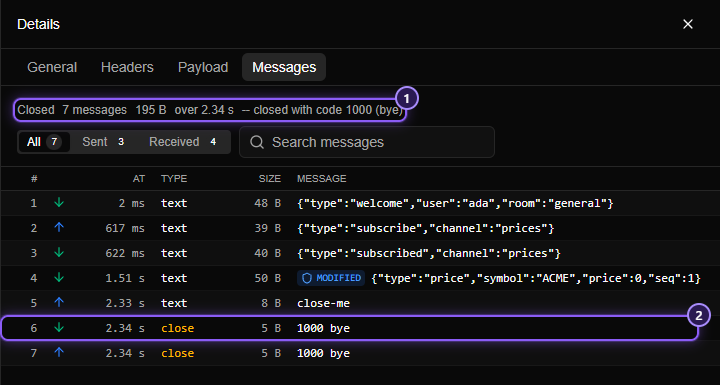
- How it ended, with the code and the reason the side that closed gave.
- The close message itself, shown as its code and reason,
1000 bye. A normal goodbye is two messages: one side's, and the other side's answer.
Telling these apart is useful. "Closed with 1008" points at the server rejecting something your app did. "Dropped" points at the network or a crash on one side. The row in the Flows list stops showing open and shows the total time and message count instead.
On the General tab#
The General tab of a WebSocket shows the same summary, in its own WebSocket section:
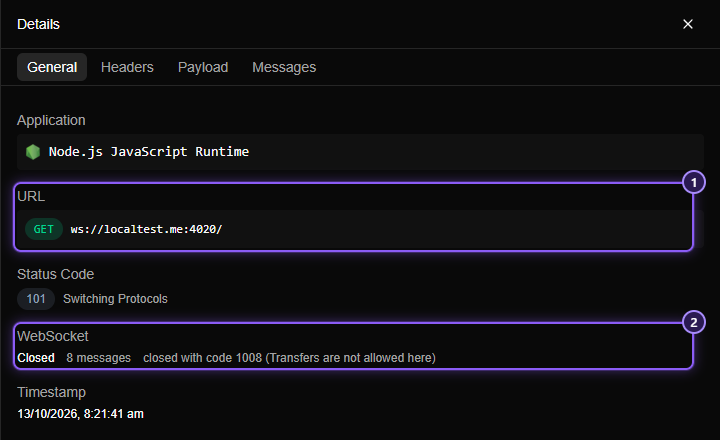
- URL: the
ws://orwss://address your app opened, even though the handshake itself travels as an ordinary request. - WebSocket: whether it's open, how many messages it has carried, and how it ended.
The status is 101 Switching Protocols, the server's agreement to switch from requests to messages. Headers shows the handshake as it was sent and the server's answer, including the sub-protocol it chose, if the app asked for one. A WebSocket has no Response tab: there's no body to show, so Messages takes its place.
Limits#
Only the first 10,000 messages or 8 MB of text of a connection are kept. Later messages still pass through and are counted, and the tab says so. Two other notes you might see at the top of the list:
- This connection had too many messages to keep in full – only the first ones are shown. The limit above was reached.
- N messages were passed on but not captured, because they arrived faster than they could be shown. A very busy socket outran the window. Nothing was lost on the wire: the messages reached the other side.
The full list of limits is on WebSockets.