
Writing a rule is the right tool when you want the same change every time. Sometimes you want something different: to look at one specific request, tweak a single value, and see what happens. For that there's the Pause and Review action. Think of it as a breakpoint for HTTP.
How it works#
A Pause and Review rule holds matching requests before they're sent. The request waits in the Paused tab on the Flows page. You can then edit it and choose:
- Resume, to send it on (with your edits, if any).
- Drop, to discard it so it never reaches the server.
A Pause and Review rule needs no configuration beyond its conditions, which is why it's so quick to set up.
Set one up#
Open Rules, click Create Rule, and fill it in:
- Source: the app you're testing.
- Label:
Review settings writes - When…
- HTTP Method
isPUT - URL
contains/v1/settings
- HTTP Method
- Then… choose Pause and Review.
Save it, then change a setting in your app. Instead of saving, the app waits. Open the Paused tab and click the request.
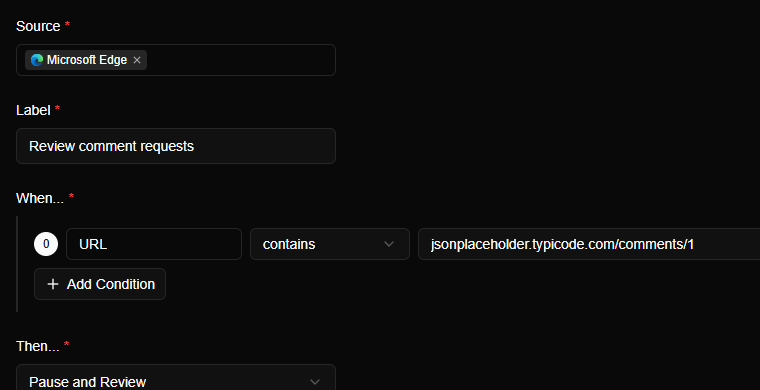
To keep the screenshots simple, here is the same kind of rule aimed at a free practice server. It pauses any request for /comments/1:
Edit and resume#
Load the page that makes the request. The browser sits there loading, because Mittelware is holding the request. Switch to Flows, open the Paused tab and click the row. The details panel shows who sent it, which rule paused it, and the request itself, with the method and URL ready to edit:
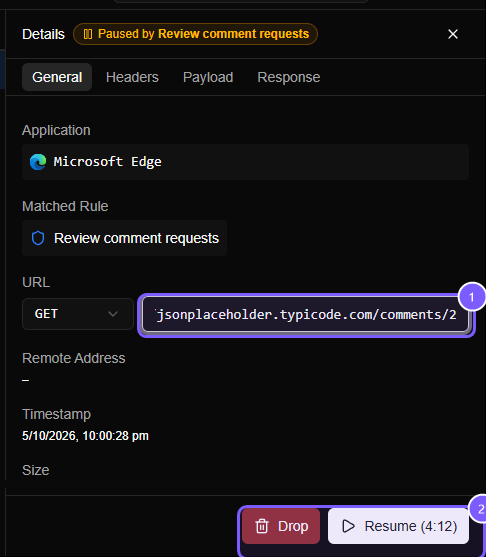
In the paused request you can change:
- The method
- The URL
- Any header
- The body
Make your change and press Resume. Once resumed, it carries on exactly as if no rule had been involved: the response is whatever the server really sent for your edited version.
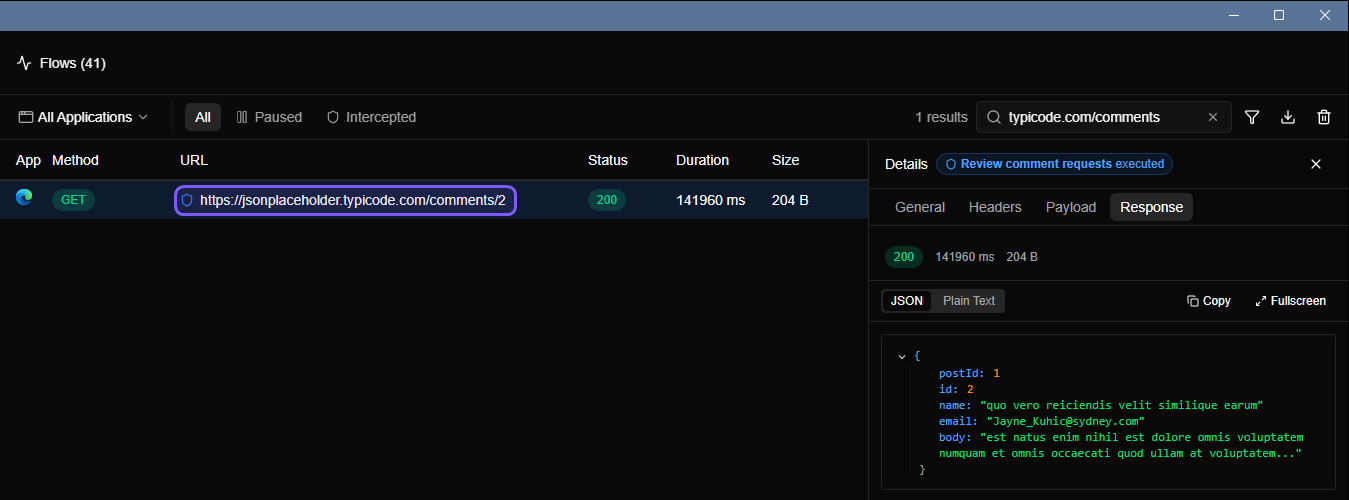
Here is what happened to ours. The browser still shows the address it asked for, /comments/1, but the page holds comment number 2:

Flows records what was really sent, which is your edited URL, and how long the request sat waiting for you:
What it's good for#
Test server-side validation. Your form won't let you submit a negative quantity or a 10,000-character name, but the API should still reject them. Pause the request and change the body to something the UI would never send.
{ "quantity": -5, "note": "x" }Check authorization. Change an ID in the URL (/v1/orders/1042 to /v1/orders/1043) or remove the Authorization header and see whether the server really says no. The screenshots above are exactly this trick, with a harmless comment ID.
Flip a flag once. Change a feature flag or role in a single request without reconfiguring anything.
Lose a request. Choose Drop and the request never leaves your machine. It is a quick way to see, once and by hand, how the app copes when a call simply doesn't get through.
Look before it leaves. Sometimes the goal is just to see exactly what is about to be sent, with a chance to stop it. A Pause and Review rule on a destructive endpoint is a cheap safety net while you explore an unfamiliar app.
Things to know#
- There's a countdown. The Resume button shows how long is left. If you do nothing for five minutes, Mittelware sends the request on exactly as it was when it was paused, so a forgotten pause never leaves things stuck for ever.
- Clients have timeouts. While a request is paused, the app is waiting on it. Take too long and the client may give up, so the answer you resume has nobody left to receive it. Work quickly, or raise the timeout in the app you're testing.
- Pause narrowly. A condition like
URL contains /will freeze every request the app makes, including the ones it needs to render the page you're trying to test. Match the specific endpoint. - Switch it off after. A Pause and Review rule left on is a request left hanging. Use the toggle on the Rules page.