
The mobile site works on your laptop and misbehaves on a phone. A request fails only on cellular Wi-Fi at the office. An app does something at launch and you can't tell what. Browser DevTools can't help, because the traffic isn't in your browser: it's on another device.
The fix is to let the phone send its traffic through your computer. Mittelware can do that over your Wi-Fi. You'll see the phone's requests in the same Flows list as everything else, read what came back, and use the same rules on them. This post walks through it from a cold start. It takes about five minutes.
You'll need the phone and the computer on the same Wi-Fi network (not mobile data, and not a guest network that isolates devices from each other).
1. Allow other devices#
Mittelware only listens for other devices when you ask it to. Open Settings and switch on Allow other devices on my network.
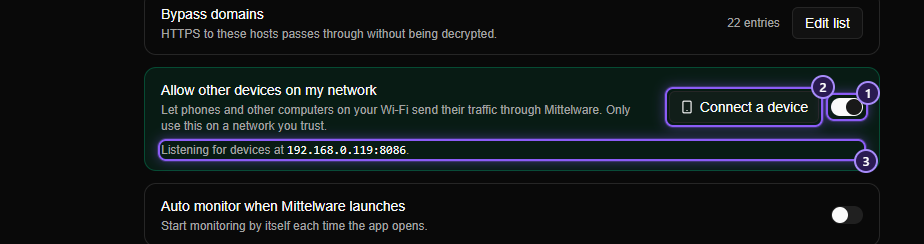
Nothing restarts, and apps you opened from Mittelware stay open. Mittelware opens one more port for your network and tells you where it's listening. It accepts only devices on a private network (the kind your router hands out), so it isn't a way in from the internet.
WARNING
Windows will ask to allow it, once. In the Windows Security Alert, tick Private networks and Public networks, then Allow access. Don't click Cancel: Windows then remembers a block and your phone just times out. Phones and other devices explains how to undo that.
2. Open the address on the phone#
Click Connect a device. A panel shows a QR code and, under it, the same address in writing.
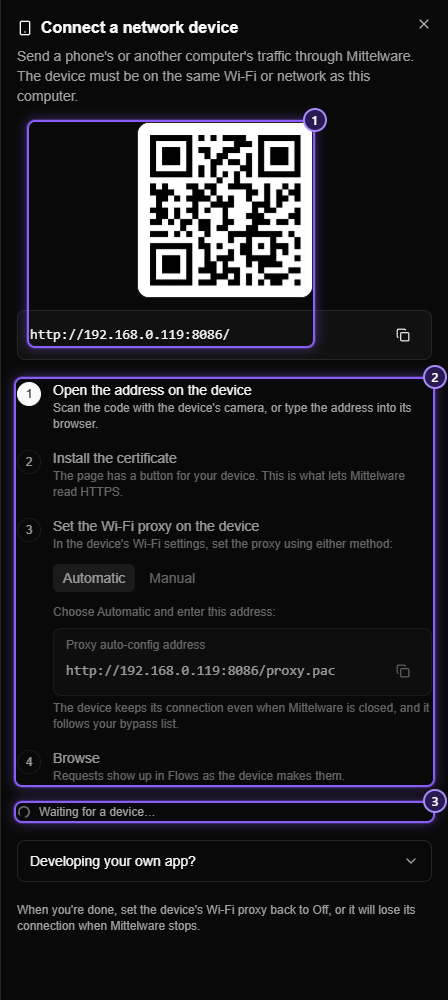
Scan the code with the phone's camera. A setup page opens in the phone's browser, with the instructions for that phone first.
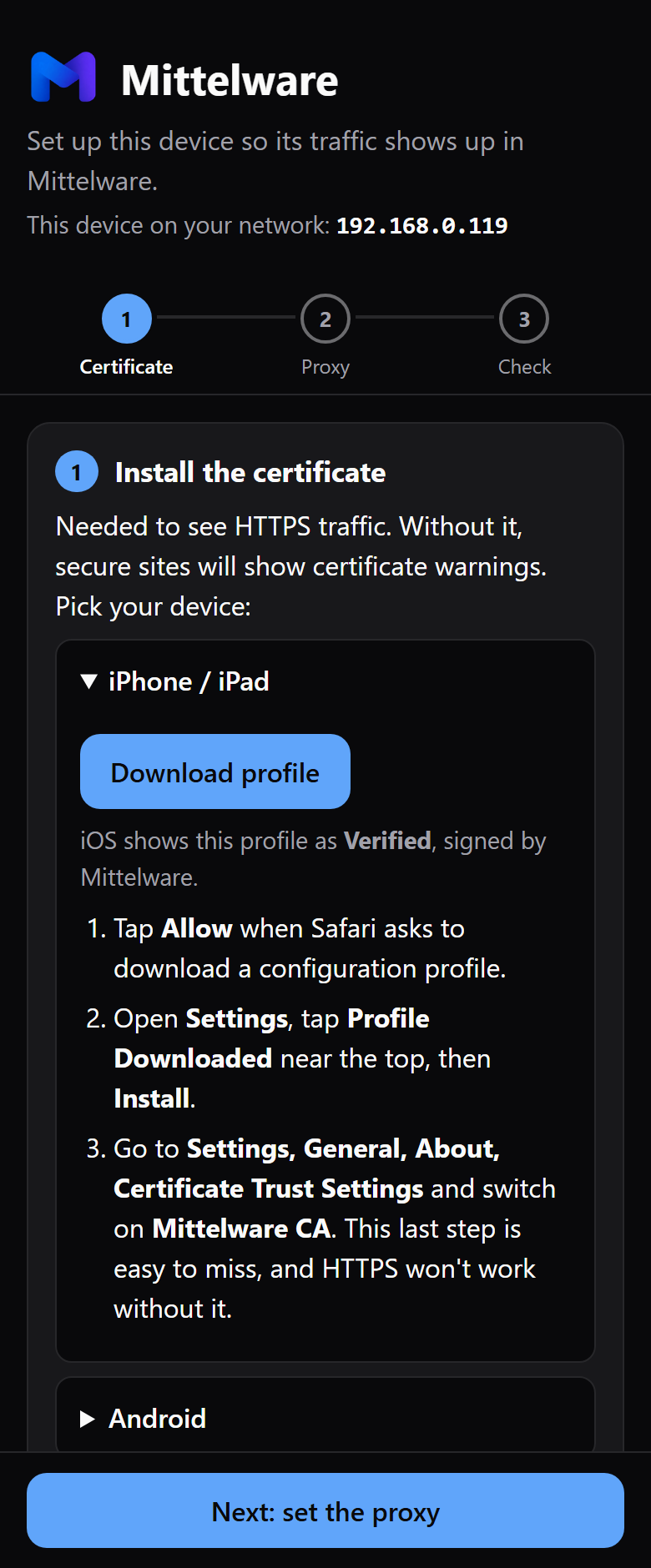
The page is plain HTTP, so the browser may call it "Not secure". That is expected: the phone can't trust Mittelware yet, and the page only hands out Mittelware's public certificate. The private key never leaves your computer.
3. Install the certificate#
Without it, plain HTTP shows up but HTTPS sites fail or show warnings. Tap the button for your device and follow the page.
- iPhone and iPad: tap Download profile, then in Settings tap Profile Downloaded and Install. Then do the step people miss: Settings, General, About, Certificate Trust Settings, and switch Mittelware CA on.
- Android: tap Download certificate, then install it from Settings by searching for CA certificate.
Install the certificate has the exact steps for iPhone, Android, Mac and Windows, and how to remove it afterwards.
4. Point the phone's Wi-Fi at Mittelware#
In the phone's Wi-Fi settings for this network, set the proxy. There are two ways, and the panel shows the values for both, each with a Copy button.
- Automatic: choose Automatic and paste one address ending in
/proxy.pac. If Mittelware is closed, the phone connects directly and keeps working. - Manual: choose Manual and enter the server and port shown.
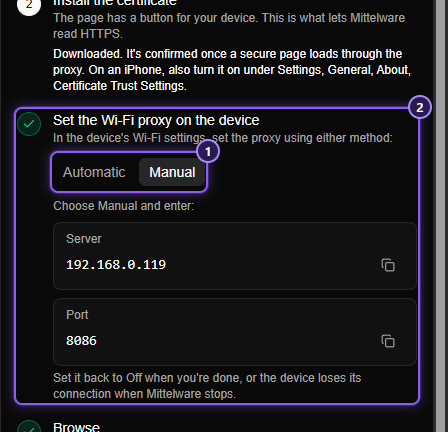
Set the proxy on the device has the menus for iPhone, Android, Mac and Windows. Most people should use Automatic.
5. Watch it come in#
As the phone does each thing, the panel ticks the step off by itself. It can tell when the page was opened, when the certificate was downloaded, and when the first request came through.
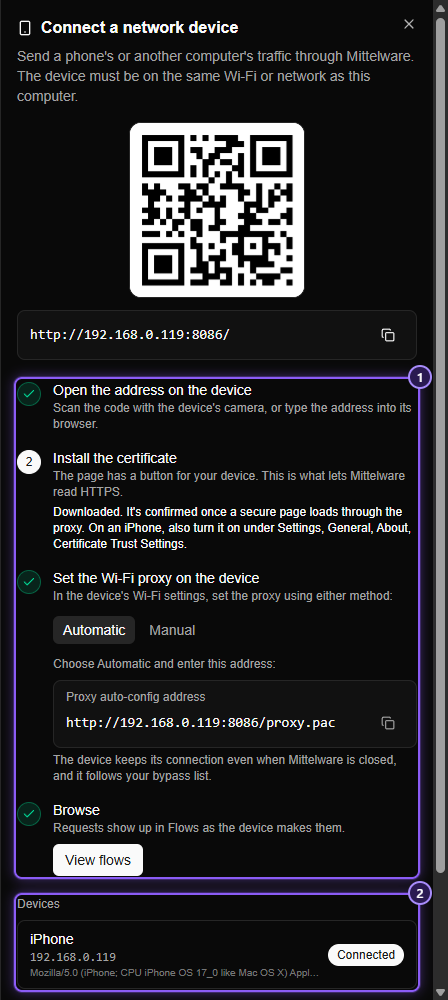
Mittelware can tell that the certificate was downloaded, but not that you installed and trusted it. A device that opens secure connections and then drops them is called out in the panel: HTTPS not readable yet. The certificate may not be installed or trusted. On an iPhone, that almost always means the Certificate Trust Settings switch.
Now browse on the phone. Open Flows: its requests are there.
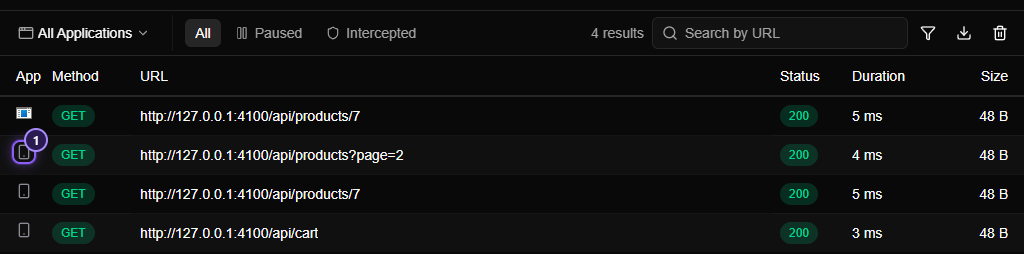
A request from your computer shows the application's icon. A request from a phone shows a phone icon (a tablet or computer icon, if that's what it is), and hovering it shows the device's name, such as iPhone (192.168.0.23). Open a row and you get the same detail as always: headers, payload and a formatted response.
6. Change what the phone sees#
Everything you can do to a request on your computer, you can do to one from the phone. When you make a rule, the App box now has Network device pinned at the top.
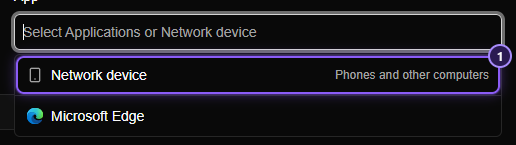
Pick it and the rule applies to every request from every device on your network, and to nothing on your computer. Block a call to see the app's error state, return a mocked response, add a header, or hold a request with Pause and Review and edit it by hand on a screen big enough to read.
Some good first rules:
- Block the analytics domain to see if the app still works without it.
- Modify Response with a
500for the one endpoint your login screen calls. - Modify Response with a Delay of a few seconds to feel what a slow network does to a screen.
When it doesn't work#
| What you see | Probably |
|---|---|
| The address times out on the phone | Windows Firewall is blocking it, the phone is on a different network or a guest Wi-Fi, or the router isolates clients |
| The setup page opens but nothing shows in Flows | The Wi-Fi proxy isn't set yet, or was set on another network |
| Chrome shows up but other apps don't | Many apps ignore the Wi-Fi proxy, or don't trust certificates you installed yourself. Android is strict about this |
| Secure sites show a certificate warning | The certificate isn't installed or trusted yet |
The second row of that table is the honest limit of any proxy on a phone: apps that ignore the system proxy, apps that pin their own certificate, and (on Android 7 and later) apps that only trust certificates their developer allows. None of that is Mittelware being broken. For an app you build, there's a fix: Testing your own app.
When you're done#
Set the phone's Wi-Fi proxy back to Off, unless you used the Automatic address, which already falls back to a direct connection. Then switch Allow other devices on my network off in Settings, or just quit Mittelware: the extra port closes at once.
TIP
Only trust the certificate on devices you own, and remove it when you no longer need it. It's under Settings, General, VPN & Device Management on an iPhone, and under User credentials on Android.
Where to go from here#
- Phones and other devices is the full guide, including what to do when something doesn't show up.
- How to inspect HTTPS traffic from any app on your computer covers the certificate and what trusting it means.
- Why isn't my app's traffic showing up? is the checklist for the apps that stay quiet.