
Some bugs only happen on the deployed site. The data is real, you're signed in, the feature flags are set, a gateway adds headers you can't reproduce. You've fixed it locally, your build is sitting in a dist folder, and now you'd like to see the fix inside the real page, before you deploy anything.
The usual choices are bad. Deploy to staging and wait. Run the whole thing locally and rebuild the environment around it. Or paste your compiled code into DevTools and hope.
There is a better one. Let the browser load the real page from the real server, and make only your own files come from your computer. Mittelware can do that with one rule. This post shows two ways: serving a whole folder, and swapping a single script for your dev server.
Way 1: serve a folder#
Say the site is https://app.example.com, and your fixed build is in C:\work\my-app\dist. You want every file the app asks for to come from that folder when it exists there, and everything else, such as the API calls, to go to the real server.
- Click Create Rule.
- App: your browser.
- Label:
Serve my local build. - When…
Domainisapp.example.com. - Then… choose Modify Response. Its Behavior starts on Instead of the server, which is what we want here.
- Click Add action, choose Body, and then choose From folder.
- Click Folder and pick your
distfolder. - URL path of the folder:
/. That is the part of the address the folder stands for: here, everything. - Leave When the folder has no such file on Send the request on to the server.
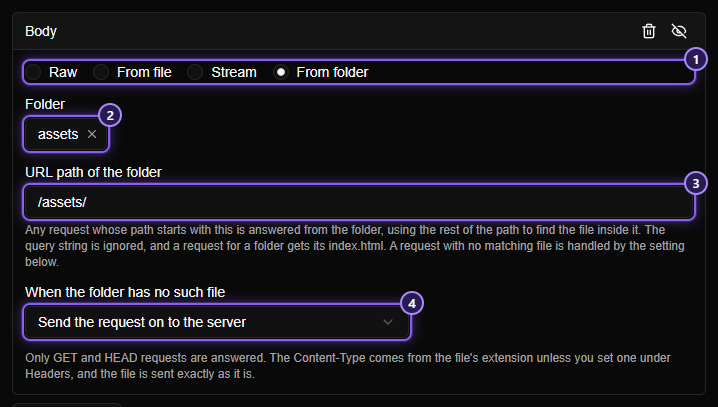
- From folder mode.
- The folder to serve.
- The URL path it stands for.
- What to do when a file isn't in the folder.
Click Create and reload the page.
Here is what the browser gets:
| The page asks for | It gets |
|---|---|
/ |
your dist/index.html |
/assets/main.js |
your dist/assets/main.js, with the right Content-Type |
/api/orders?page=2 |
the real server's answer: there's no such file in your folder, so the rule steps aside |
a request that isn't GET |
the real server's answer: only GET and HEAD are answered from the folder |
So the page loads your build, and your build talks to the real API with your real session. The server never knows anything is different.
TIP
The files are sent exactly as they are. Nothing in them is read as a template, so a file that contains {{ something }} arrives untouched. And browsers are told not to keep a copy, so when you rebuild, a plain reload picks up the new files.
Two things to know#
Deep links. A single-page app serves its index.html for routes like /orders/12. There is no such file in your folder, so that request goes to the real server, which sends back its own page. Open the site from / and navigate inside the app, rather than loading a deep link directly.
Nothing leaves the folder. Mittelware only ever reads files inside the folder you chose. A request with .. in it, an encoded .., or a link that leads out of the folder is treated as a missing file. Your .env next to dist stays where it is.
Way 2: swap one script#
Sometimes a whole build is more than you need. You run the app's dev server, say Vite on localhost:5173, and you only want the deployed page to load your script instead of the production bundle. For that, leave the server in charge and edit the page on its way back.
The deployed page contains something like:
<script src="https://cdn.example.com/assets/main-9f8e7d.js"></script>
<div id="promo-banner">Sale!</div>- Create Rule. App: your browser. Label:
Swap the script for my dev server. - When…
Domainisapp.example.comandPathis/. - Then… Modify Response, and set Behavior to After the server responds: the real page is needed first.
- Add action, Body, and choose Find and replace.
- Applies to: HTML pages.
- In the first replacement, switch on Regular expression and fill in:
- Find:
https://cdn\.example\.com/assets/(\w+)-[a-f0-9]+\.js - Replace with:
http://localhost:5173/$1.js
- Find:
- Click Add replacement for a second one, in plain text: Find
<div id="promo-banner">, Replace with<div id="promo-banner" hidden>, and switch on First match only.
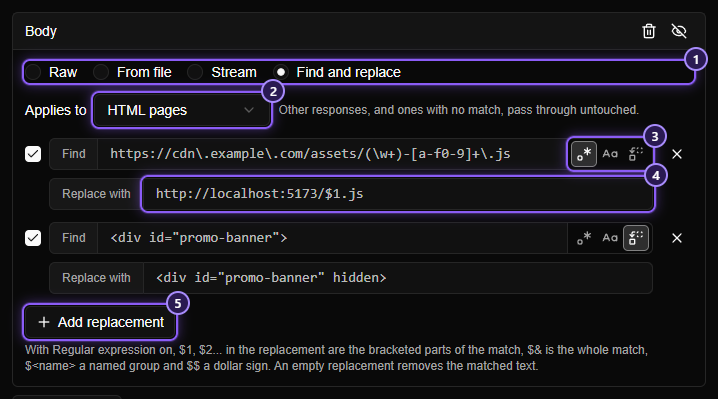
Reload. The page arrives from the real server, but it now reads:
<script src="http://localhost:5173/main.js"></script>
<div id="promo-banner" hidden>Sale!</div>
The $1 in the first replacement is whatever the pattern's first group caught: the main in main-9f8e7d.js. The second replacement shows a plain-text search: nothing in it needs escaping. Replacements run in order, and each one reads what the one before it left, so a later replacement can edit text an earlier one wrote.
NOTE
Servers usually compress what they send, with gzip, Brotli or zstd. Mittelware reads the page decompressed, edits it, and sends it on plain, with the headers corrected, so your browser doesn't need to know. A page where none of your replacements match is left exactly as the server sent it, compression included. Only the kind of response you chose under Applies to is touched.
Which one?#
| You want to | Use |
|---|---|
| Run your whole build against the real backend | From folder, with the URL path / |
| Replace a folder of assets that the page always asks for by the same names | From folder, with that path, for example /assets/ |
| Run a dev server with live reload for one script | Find and replace on the HTML |
| Change a few things in the real page and leave the rest | Find and replace |
TIP
If your build puts a hash in every file name (main-9f8e7d.js), the deployed page asks for hashes your folder doesn't have. Serving the folder at / fixes that, because the page itself comes from your build too. Otherwise build without hashes, or use Find and replace to rewrite the address.
Switching it off#
Both are ordinary rules. Turn off the rule's switch in the Rules list and the page is the deployed site again. If you keep several such setups, put them in their own collection and switch the whole group off with one click.
Where to go from here#
- Answer without the server covers every setting of a folder body, and answering with a mock or a file.
- Find and replace in a response lists the options, the kinds of response and what is left alone.
- Run your frontend against staging without code changes is the opposite problem: your code is local, the data is on staging.