
When an API call goes wrong, guessing is slow. The faster route is to look at the real request and the real response, and then change one thing at a time. This is a workflow that works for any app on your computer, whatever language it is written in.
1. See the real request#
Console logs show what your code thinks it sent. A debugging proxy shows what actually went over the wire. Switch Mittelware on, use the app, and open Flows. Type part of the URL into the search box to find the call.
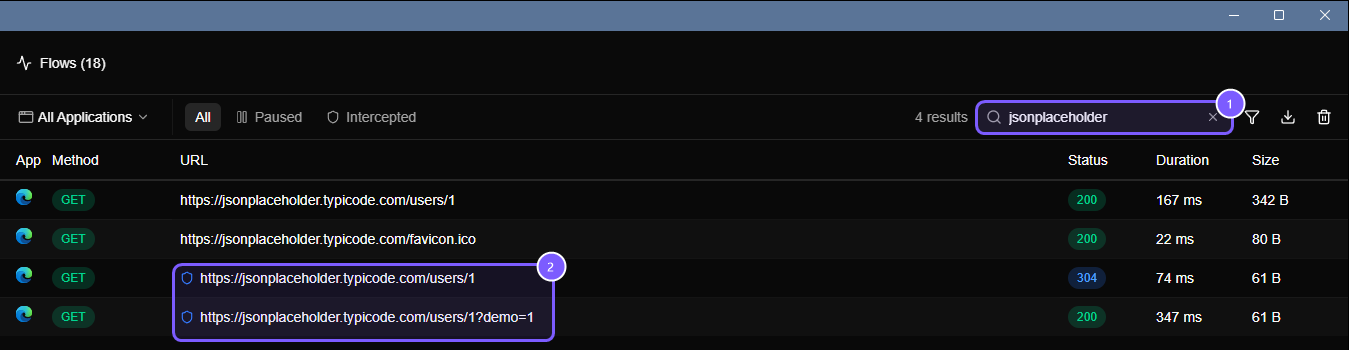
Click the request and look at, in this order:
- Status.
4xxmeans the server rejected what you sent.5xxmeans it failed. No status at all means it never answered. - URL and method. A wrong path, a stray trailing slash or
GETwherePOSTwas meant is the most common bug. - Request headers. A missing
Authorization, a wrongContent-Typeor a missingAcceptexplains many401and415errors. - Request body. Is it the JSON you expected, with the field names and types the API wants?
- Response body. Servers usually say what is wrong. An error message here beats an hour of guessing.
2. Compare with something known to work#
Copy the same request into a tool you trust, such as curl or Postman, and see if it works there. If it does, the difference between the two requests is your bug, and the headers are the first place to look.
In the other direction, Mittelware's rule form has Import from cURL. Paste a curl command, for example from your browser's Copy as cURL, and it turns it into conditions you can tick.
3. Change one thing at a time#
Once you have a theory, test it without editing your app's code. Create a rule that changes the request on its way out:
- Add or fix a header.
- Change a query parameter or the path.
- Replace the body.
Use Modify Request for this. If the call now succeeds, you know what the app should have sent. Put that change in the code and switch the rule off.
4. Hold a request and edit it by hand#
For awkward cases, use a Pause rule. It holds the request before it leaves your computer, lets you edit it, then forwards or drops it. See pause and edit a request by hand. It is the closest thing to a debugger for network calls.
5. Check the failure paths#
A request that works today can fail tomorrow. Once the happy path is fixed, make it fail on purpose and see what the app does: a 401, a 429, a 503 or a timeout. See the HTTP error codes every frontend should be tested against.
If the request does not show up#
- The app may ignore the system proxy. Launch it from the Applications page, or point it at the proxy.
- The app may pin its certificate, which a proxy cannot decrypt.
- Browsers often skip the proxy for
localhost. - Make sure monitoring is on.
Why isn't my app's traffic showing up? covers each of these.